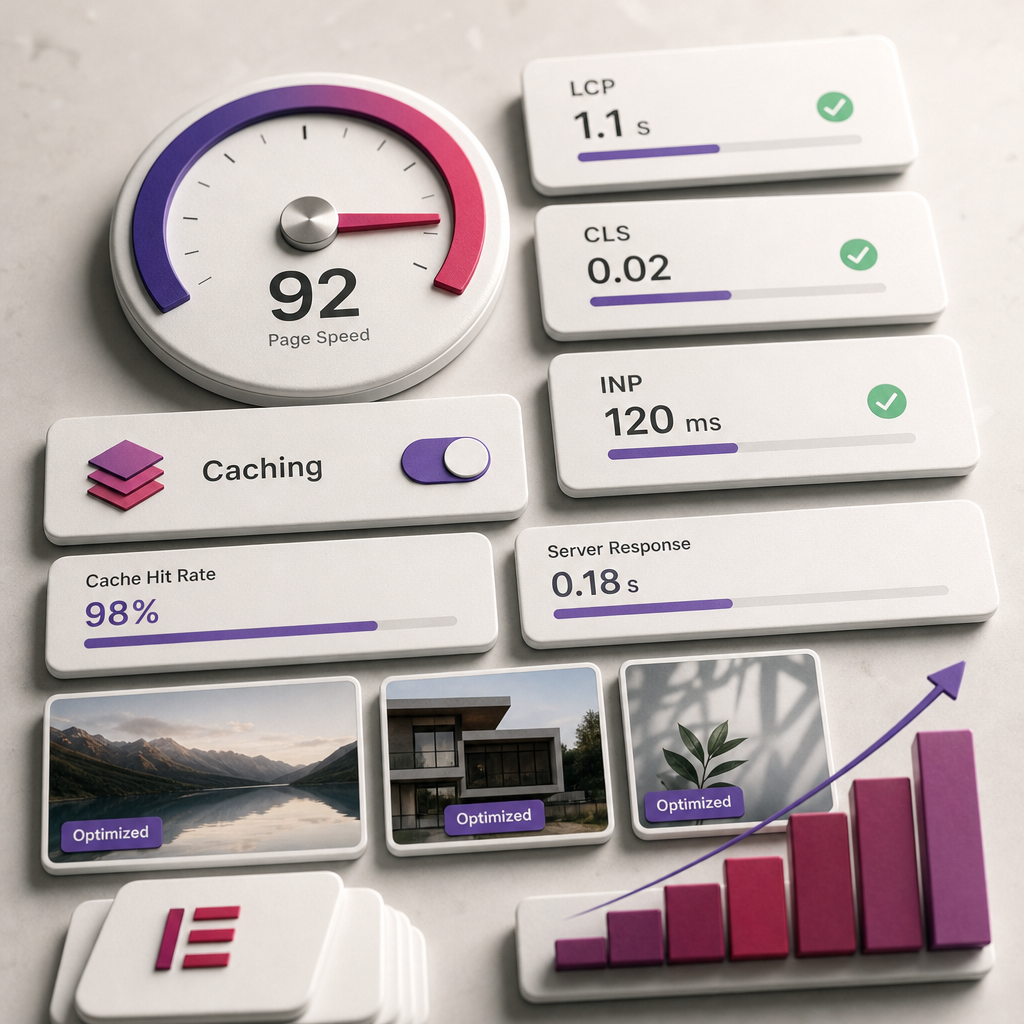
Element Caching in Elementor helps reduce the number of repeated calculations required while a page is being generated. This can be especially noticeable on layouts with many containers, widgets, complex styles, and repeated blocks.
The feature does not replace page caching, image optimization, or fast hosting. Its purpose is narrower: to store the processing result of individual elements that do not change for each visitor. The key to configuring it correctly is separating static content from dynamic content.
What Is Element Caching and How Does It Work?
When a page loads, Elementor processes the container structure, styles, widgets, and their settings before generating the HTML. If a page contains many complex elements, some of this processing is repeated with every request.
Element Caching stores the processing result of a compatible element and reuses it. This means the server does not have to perform the same work repeatedly for static blocks. The feature can be most beneficial on pages with large Elementor layouts, but its impact depends on the theme, plugins, hosting environment, and amount of dynamic data.
This is not the same as page caching in an optimization plugin. Page caching stores a completed page or response for a visitor, while Element Caching works at the level of individual Elementor elements.
- reduces repeated generation of static elements;
- can reduce rendering load on complex pages;
- works best for content that is the same for all visitors;
- is not a universal way to speed up every page.
How to Enable Element Caching in Elementor
The names and availability of settings may vary depending on your Elementor version. The relevant setting is usually located in the WordPress admin area under Elementor, in the Features or Performance tab. If you cannot find it, check for Elementor updates, confirm your user role, and consult the documentation for your installed version.
Before enabling the feature, it is advisable to create a site backup or test it on a staging copy first. Changing caching behavior can affect dynamic widgets, integrations, and custom templates.
- Open the Elementor settings in the WordPress admin area.
- Find the Features or Performance tab.
- Look for a setting related to Element Caching.
- Enable the feature and save the changes.
- Clear the Elementor cache if this option is available in your version.
- Clear the optimization plugin cache, server cache, and CDN cache if they are being used.
Why the Setting May Have a Different Name
Elementor gradually changes where experimental and performance features appear in the admin panel. Therefore, do not rely on the exact name shown in instructions for a different version. Look for settings related to element caching or performance, and review the feature description before enabling it.
Which Elements Can Be Cached?
Caching is best suited to blocks whose content does not depend on a specific user, the current time, order status, or an external request. Evaluate the actual content and data source rather than relying only on the widget name.
- hero sections with a fixed heading, text, and image;
- static sections describing benefits, services, or the company;
- repeated cards with identical predefined content;
- decorative containers, background elements, and dividers;
- static calls to action without personalization;
- sections with text and images that change rarely.
Example of a Safe Candidate
A section with the fixed heading “Website Development for Businesses,” a short description, a button, and a decorative background image is usually static. If the button points to a permanent URL and the text is not generated using dynamic tags, this block is a logical candidate for caching.
What Should Not Be Cached?
Be careful with elements that may show different data to different users or change without the page itself being edited. If the result of such an element is reused, a visitor may see outdated or someone else’s content.
Pay particular attention to dynamic tags, database queries, and widgets that depend on a user session. If you cannot clearly determine that an element is identical for everyone, it is safer not to cache it.
- forms and submission result messages;
- carts, mini-carts, and checkout blocks;
- prices, stock levels, order statuses, and product availability;
- content intended for logged-in users;
- dynamic lists of posts, products, or profiles;
- widgets that depend on the date, time, location, or personalized recommendations;
- elements with dynamic tags when their output changes depending on the request.
Risk for an Online Store
On a product page, the description and gallery may be relatively stable, but the price, stock level, variations, and cart often depend on current data. Do not apply caching to the entire template without testing: static page content and shopping functionality may have different requirements.
How to Test Your Site After Activation
After enabling Element Caching, do not limit your testing to the Elementor editor. The editor may operate differently from a normal visitor request, so you should test the published page.
First, clear every caching layer. If the page still displays an old version, the cause may not be Elementor. It could be the browser cache, an optimization plugin, the hosting environment, or a CDN.
- open the page in a private or incognito window;
- check it as an unauthenticated visitor;
- review both desktop and mobile versions;
- test forms, buttons, menus, popups, and interactive elements;
- for an online store, check prices, variations, the cart, and checkout;
- log in with a test user and check personalized content;
- compare the page after reopening it and after clearing the cache.
Common Problems and How to Fix Them
The most common mistake is caching a block simply because it looks simple. A widget may have a dynamic data source even if it appears on screen as ordinary text or a card.
If incorrect data appears after activation, temporarily disable Element Caching and test again. If the problem disappears, exclude dynamic sections one at a time and clear the cache after each change.
- Outdated content: check the Elementor, optimization plugin, server, and CDN caches.
- Broken interactive element: exclude the form, popup, or widget with dynamic JavaScript.
- Different appearance for guests and logged-in users: do not cache the personalized block.
- Problems after an update: check compatibility between Elementor, the theme, and add-ons.
- No noticeable speed improvement: compare the page before and after the changes under the same conditions, and investigate other causes of slow loading.
Element Caching as Part of Elementor Optimization
Element caching is useful only when combined with other basic optimizations. If a page loads heavy images, dozens of fonts, unnecessary widgets, or many third-party scripts, caching alone will not remove the main cause of slow performance.
After configuring the feature, review image sizes, the number of fonts, unnecessary animations, third-party integrations, and duplicate styles. Also make sure that your caching plugin does not conflict with Elementor's cache or block required scripts.
- remove unused widgets and sections;
- compress images and use modern formats;
- limit the number of font families and font weights;
- avoid adding animations without a practical purpose;
- update Elementor, the theme, and add-ons after checking compatibility;
- evaluate not only test scores but also the page's real-world performance on mobile devices.
Frequently asked questions
Do I need to enable Element Caching on every site?
No. The feature is most useful for complex Elementor pages with static sections. On a simple site, the impact may be minimal, so check both performance and functionality after enabling it.
Can I cache a WooCommerce product page?
Do not cache the entire template without testing if it includes prices, stock levels, variations, the cart, or personalized data. Consider static sections separately and exclude shopping-related elements.
Why is the old version still displayed after I change text?
One of the caching layers is a likely cause. Clear the Elementor, optimization plugin, server, and CDN caches, then open the page in an incognito window.
Does Element Caching replace page caching?
No. They are different mechanisms. Element Caching optimizes the processing of individual Elementor elements, while page caching stores a completed response for a visitor.
Conclusion
Use Element Caching in Elementor selectively for hero sections, static blocks, decorative containers, and repeated cards. Do not apply it without testing to forms, carts, prices, statuses, dynamic tags, or personalized content.
After activation, clear every cache and test the site as a guest, logged-in user, and shopper. This approach helps you benefit from the optimization without showing visitors outdated or incorrect data.