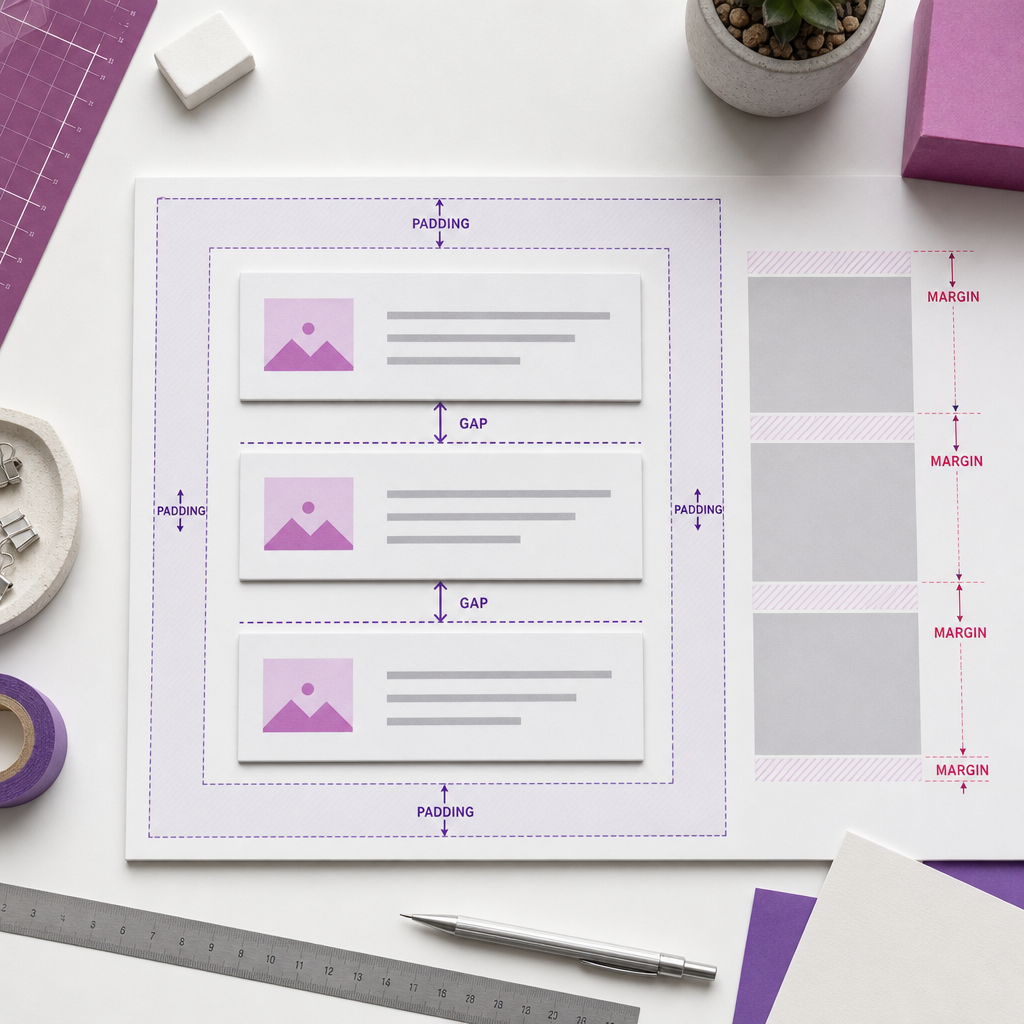
In Elementor layouts, vertical spacing between headings, text, buttons, and form fields is often set with margin on each widget. This approach works, but over time it creates unnecessary exceptions: the last element needs its bottom margin removed, nested blocks begin affecting one another, and the mobile version requires manual adjustments.
For the internal structure of a container, the CSS gap property is more convenient. It sets the distance between adjacent elements without adding unnecessary space to the container edges. As a result, the layout is easier to maintain, scale, and adapt to different screen widths.
What Is Gap and How Does It Differ from Margin?
Gap is the space between child elements in a flex or grid container. In Elementor, this property is used to control spacing inside a container: between a heading and description, cards in a list, form fields, or navigation elements.
Margin is the outer spacing applied to an element itself. It can create space not only between adjacent blocks but also between an element and the edge of its parent container. Therefore, margin is better suited to external positioning, while gap is designed for a consistent rhythm within a group.
For example, if a container includes a heading, paragraph, and button, using margin requires you to configure the spacing for the heading and text separately and check whether the button leaves unnecessary space afterward. Gap sets one consistent interval between all of these elements.
- Gap works between elements rather than after the last child block.
- Margin belongs to a specific widget and can affect neighboring sections.
- Gap is useful for consistent spacing, while margin is better for individual adjustments or external positioning.
How to Set Gap in an Elementor Container
Before adjusting the setting, make sure you are editing the parent container that contains the elements you want to align. If you select an individual widget, the gap setting will not create a shared rhythm for the entire group.
Field names may vary slightly depending on your Elementor version and the type of container. The relevant settings are usually located under Layout and are associated with Items Gap, Gap, Row Gap, or Column Gap.
- Select the parent container in the page structure or directly on the canvas.
- Open the Layout tab.
- Find the settings for spacing between child elements.
- For a vertical list, set the vertical or row gap. In some interfaces, this may be called Vertical Gap.
- Enter the required value and check the result in the preview.
- If the container uses a horizontal direction, also check the horizontal spacing between elements.
How to Tell Which Gap to Change
In a container with the Column direction, the primary vertical gap determines the distance between elements from top to bottom. In a container with the Row direction, it sets the horizontal spacing. If elements wrap onto a new line, you may also need a separate row gap to control the distance between rows.
Before changing the value, check the container's Direction, Wrap, and alignment settings. Sometimes an issue that looks like incorrect vertical spacing is actually caused by elements being arranged in a row or wrapping because there is not enough available width.
Why Gap Is More Convenient for Responsive Design
On narrow screens, large gaps between elements can take up too much vertical space. If spacing is applied to many widgets through margin, you have to find and change each value individually. When spacing is controlled by the container, you only need to adjust one setting.
Elementor usually provides responsive settings for container properties. Switch to tablet or mobile mode, open the gap settings, and enter a smaller value if you need a more compact composition.
After making the change, check more than the standard mobile preview width. Test intermediate screen sizes as well. A gap that is too large can make the page unnecessarily long, while a gap that is too small can reduce readability and the visual separation between blocks.
- Desktop: use a larger gap for a spacious composition.
- Tablet: use an intermediate value, or keep the same value if the structure does not feel overloaded.
- Mobile: use a smaller gap between headings, text, buttons, and fields.
- Do not change the gap without checking line height, text wrapping, and button size.
Where to Use Gap: Practical Examples
Gap is especially useful when several elements form a logical group and need consistent spacing. This helps preserve the same visual rhythm even after individual blocks are added or removed.
- Hero section: a heading, short description, and buttons with consistent vertical spacing.
- Service card: an icon, title, description, and button without separate margins on every element.
- Form: a heading, explanation, fields, and button grouped in one vertical container.
- Benefits list: headings and descriptions that need consistent spacing between them.
- Card section: column gap and row gap for controlling spacing in a grid or a wrapping container.
- Mobile menu: consistent spacing between menu items without manually configuring every link.
When You Still Need Margin
Gap does not replace margin in every situation. If you need to move an entire block away from a neighboring section, change its position, or create a specific exception, margin remains appropriate.
Margin may also be needed for the outer spacing of a section, positioning an individual decorative detail, or setting the distance between independent containers. The key is to separate the levels: gap controls the internal structure, while margin controls how the blocks themselves relate to one another.
- Use container margin to create space between a section and other sections.
- Apply margin to an individual element when it intentionally needs different spacing from the rest of the group.
- Avoid combining a large gap with large margins on child widgets unless necessary.
- For internal space between the content and the container edges, use padding rather than gap.
Common Mistakes and How to Check the Result
The most common mistake is adding gap to a container while leaving the old margins on all of its child elements. In this case, the spacing values are added together, and the gaps become larger than expected. After switching to gap, review the individual margins and remove the ones that are no longer needed.
Another issue occurs when the wrong container level is selected. If the heading and text are inside one nested container while the button is inside another, the gap on the parent container will not control the distance between all three elements. First, understand the structure of the nested containers.
- Check that all elements requiring consistent spacing are children of the same container.
- Make sure margin, padding, or a minimum height is not adding extra space.
- Check the container's Direction, Wrap, and alignment settings.
- Review the desktop, tablet, and mobile versions separately.
- Check the outermost elements: gap should not create space after the last block, although container padding can produce a similar visual effect.
- After publishing, test the page in a browser and on a real mobile device.
Frequently asked questions
Do I need to stop using margin entirely in Elementor?
No. Margin is useful for the external positioning of sections, containers, and individual elements. For regular spacing between child elements in the same container, gap is usually more convenient.
Why did the spacing become too large after I added Gap?
The most likely reason is that the old margins on the child widgets or additional padding are still present. Check both settings and keep only the spacing that is actually needed.
Does Gap work in a container with a horizontal direction?
Yes. In a horizontal container, gap controls the distance between elements horizontally. If the elements wrap onto new lines, also check the vertical spacing between rows.
Do I need to set a separate Gap for the mobile version?
Not necessarily. If the base value looks good at all widths, you can keep it. However, for long forms, cards, and hero sections, reducing the gap on mobile screens is often appropriate through the responsive settings.
Conclusion
Use Gap for the internal rhythm of Elementor containers: it sets the distance between elements, does not require you to remove the bottom margin from the last block, and simplifies responsive adjustments.
Keep margin for external positioning, padding for space inside the container edges, and gap for systematic spacing between child elements. This separation makes the page structure clearer and reduces conflicts in nested containers.