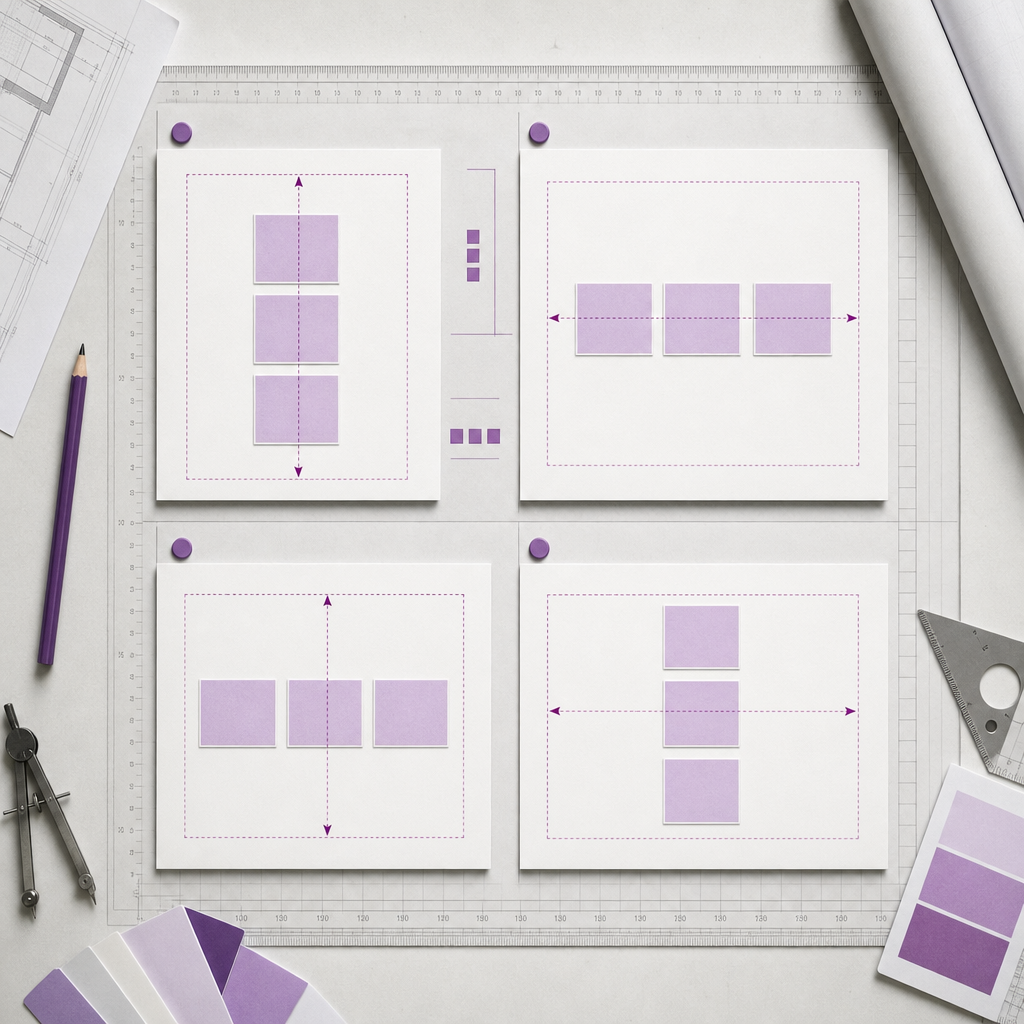
In Elementor Flex containers, alignment is primarily controlled by the Justify Content and Align Items settings. They are often confused, which is why a button, heading, or card may not move to the center even after selecting Center.
The problem is usually not an Elementor error. These settings work along different axes. To align an element correctly, you need to consider the container direction, available free space, and device-specific settings.
What Is the Difference Between Justify Content and Align Items?
Flexbox distributes a container’s child elements along two axes: the main axis and the cross axis. The Justify Content setting aligns elements along the main axis, while Align Items aligns them along the cross axis.
The Direction setting determines which axis is the main axis. If the container direction is Column, the main axis runs vertically. If Direction is set to Row, the main axis runs horizontally.
- Justify Content: aligns and distributes elements along the main axis.
- Align Items: aligns elements along the cross axis.
- Center does not automatically center elements in both directions.
- To achieve complete centering, configure both axes separately.
How Alignment Works in the Column Direction
The Column direction is often used for sections with a heading, text, and button arranged one below another. In this case, the main axis is vertical and the cross axis is horizontal.
Therefore, vertical alignment is controlled by Justify Content, while horizontal alignment is controlled by Align Items.
- To center content vertically: Direction → Column, Justify Content → Center.
- To center content horizontally: Align Items → Center.
- To place elements at the bottom of the container, use Justify Content → End.
- To align elements to the left edge, Align Items → Start is usually appropriate.
Example: A Hero Block with Text and a Button
Imagine a container with a minimum height of 600 px containing a heading, description, and button. If you want to center the entire group on the screen, select Direction → Column, Justify Content → Center, and Align Items → Center for the container.
The elements will remain stacked vertically, but the entire group will be centered both vertically and horizontally.
How Alignment Works in the Row Direction
The Row direction is used when child elements should be arranged in a single row—for example, a logo and menu, two columns, or a row of cards.
In this mode, the main axis is horizontal. As a result, Justify Content controls horizontal positioning, while Align Items controls the vertical alignment of elements within the row.
- Horizontal centering: Justify Content → Center.
- Vertical centering: Align Items → Center.
- Distributing elements between the edges: Justify Content → Space Between.
- Aligning all elements to the top edge: Align Items → Start.
- Aligning elements to the bottom edge: Align Items → End.
Example: A Website Header
If a container in Row mode contains a logo, navigation, and button, the Justify Content setting can distribute them horizontally. The Space Between value pushes the outermost elements toward opposite sides of the container.
Align Items → Center aligns the logo, menu, and button along the vertical axis. This is useful when the elements have different heights.
Why Center Sometimes Produces No Visible Result
Alignment only works when there is free space inside the container. If the container’s height is equal to the combined height of its content, there is simply nowhere to move the elements vertically.
For example, a container with a heading and button may have a height determined only by its content. In this situation, Justify Content → Center is technically applied, but nothing changes visually.
- Set a Min Height for the container if you need vertical centering within a defined area.
- Use a fixed or relative height when necessary, but check the appearance on different screen sizes.
- Make sure that inner padding is not creating a misleading impression of the content’s position.
- Check whether a child element has its own margin, position, or other styles that affect its placement.
Min Height and Height Are Not the Same
Min Height sets the minimum size of a container but allows it to grow if the content becomes larger. This is generally safer for responsive design.
A fixed Height can cause elements to be clipped or overlap if text takes up more lines on a mobile device. Therefore, the height should be checked separately for tablets and smartphones.
A Practical Alignment Workflow in Elementor
To avoid choosing settings at random, first determine the container structure and the direction in which the elements need to move.
- Select the parent Flex container in which the child elements need to be aligned.
- Check Direction: Row for a horizontal row or Column for a vertical column.
- Determine which axis the elements need to move along.
- Use Justify Content for the main axis.
- Use Align Items for the cross axis.
- If the changes are not visible, add Min Height or check the container’s width and height.
- Review the result in desktop, tablet, and mobile modes.
- Check whether the values have been overridden for a specific device.
A Quick Reference Table
Focus on the direction of the main axis rather than on the terms vertical or horizontal alignment. The direction changes together with Direction.
- Column + Justify Content → vertical alignment.
- Column + Align Items → horizontal alignment.
- Row + Justify Content → horizontal alignment.
- Row + Align Items → vertical alignment.
Common Mistakes When Working with Flex Containers
The problem most often occurs because the wrong container is being configured. For example, a user changes the alignment of an inner column even though the available space needs to be created in the outer container.
Another common cause is trying to use Justify Content for horizontal centering in Column mode or Align Items for vertical centering in Row mode.
- The alignment of a child element was changed instead of the alignment of its parent container.
- The container does not have enough free height or width.
- The wrong Direction was selected.
- Space Between was used even though the container has only one element or not enough space.
- Different responsive values remain set for a specific device.
- Margin or padding shifts the element and masks the correct behavior of Flexbox.
- The content has its own width, such as 100%, so horizontal centering does not look as expected.
Responsive Alignment for Different Screen Sizes
Settings that look good on a wide screen do not always work well on a smartphone. In a desktop container, elements may be arranged in Row mode and switch to Column on mobile.
After changing Direction, check Justify Content and Align Items again. Their visual effect changes together with the main and cross axes.
- For a desktop header, you can use Row, Justify Content → Space Between, and Align Items → Center.
- On mobile, a vertical menu may require Column.
- Do not set an excessively large minimum height on smartphones if it pushes the content too far down.
- Check long headings, text wrapping, and buttons on narrow screens.
- If the container changes Direction on different devices, check both alignment settings separately.
Frequently asked questions
Which setting should I use for vertical centering in Elementor?
It depends on Direction. In Column mode, vertical centering is controlled by Justify Content → Center. In Row mode, use Align Items → Center.
Why does Justify Content → Center not work?
Most often, the container does not have free space along the main axis. Set a Min Height or height, and make sure you are configuring the parent container.
How do I place an element exactly in the center of a container?
Determine the Direction. For Column, set Justify Content → Center and Align Items → Center. For Row, set both parameters to Center as well, but they will work along different axes.
What is the difference between Align Items and Align Self?
Align Items aligns all child elements of a container along the cross axis. Align Self applies to an individual element and can change its alignment independently of the others.
Conclusion
To quickly understand alignment in Elementor, first determine the container’s Direction. Then ask whether the elements need to move along the main axis—in which case you should use Justify Content—or along the cross axis, where Align Items applies.
If Center produces no visible result, check the available free space, Min Height, inner padding, and responsive settings. This workflow will help you predictably align sections, cards, menus, buttons, and other elements without unnecessary styles.