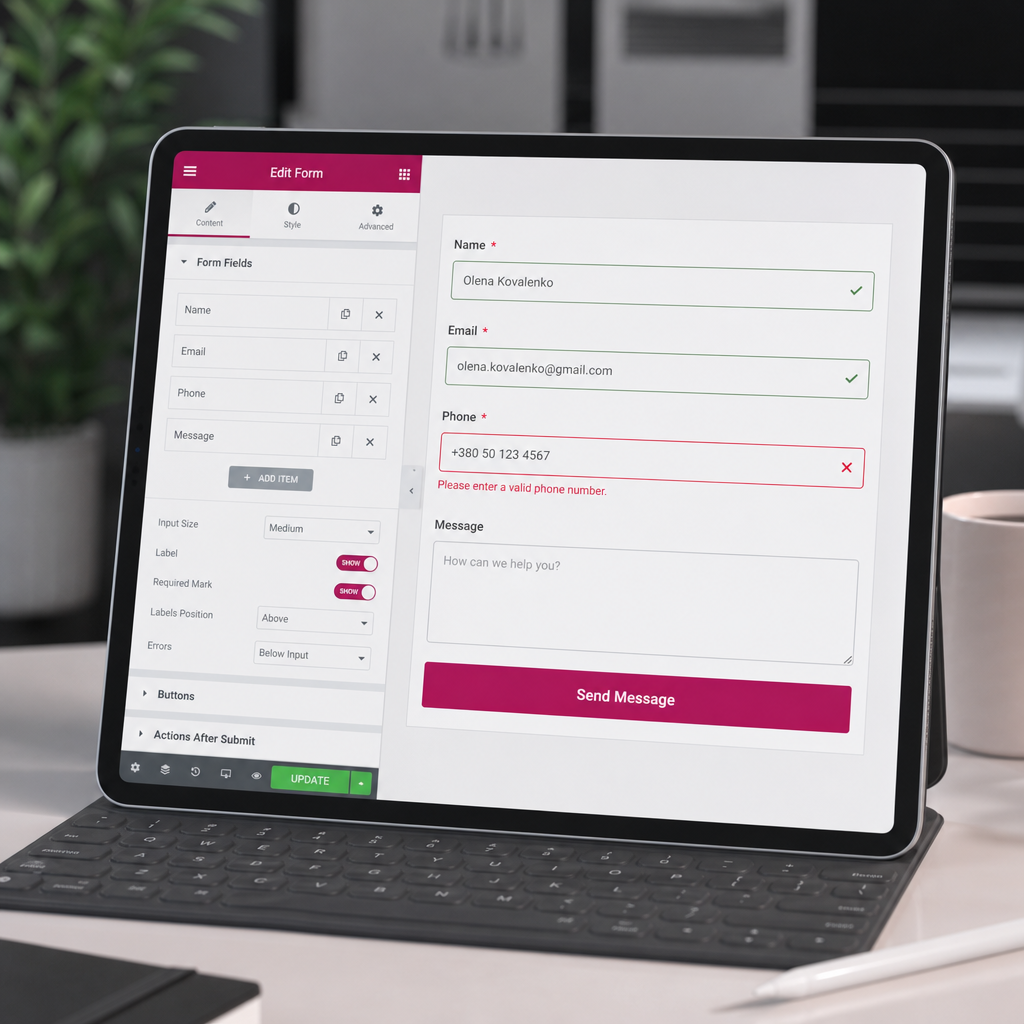
A mobile form in Elementor may look neat on screen while still being inconvenient to complete. Users may have to switch keyboard layouts manually, search for an error at the top of the form, or re-enter their data after an unsuccessful submission.
Optimization starts not with decorative effects, but with the correct configuration of every field, clear instructions, and testing on a real smartphone. Below is a practical process for Elementor forms completed on mobile devices.
First, determine which data you really need
The more fields a mobile form contains, the longer it takes to complete and the more likely users are to leave the page. Before adjusting the design, review the user scenario itself: which data is needed to respond, and which information was added merely “just in case.”
For a simple request, a name, email address or phone number, and a short message are often enough. If the company needs more details, it is usually better to add one message field or an additional question with answer options instead of creating a long questionnaire.
Mark only the fields that are essential for processing the request as required. There is no need to request a phone number if a manager can reply by email, or a name if it is not used in communication.
- Keep only the data required for the specific action.
- Do not make every field required by default.
- Check whether users understand why each field is needed.
Configure field types correctly
The field type affects not only input validation but also the keyboard displayed by the smartphone. In Elementor’s Form widget, the names of individual settings may vary slightly depending on the version or add-on used, but the underlying logic remains the same.
For a name, the Text type is usually sufficient. Add a clear label, such as “Your name,” and a short placeholder such as “Olivia.” A placeholder should not be the only explanation: it disappears after text is entered, so the field name must remain available.
For an email address, use the Email type. The browser can apply the appropriate format validation, and many smartphones will display a keyboard with convenient access to the @ symbol and period.
For a phone number, choose Tel rather than Text. This tells the mobile browser to display a numeric or phone keyboard. At the same time, do not require one rigid format if the form accepts numbers with different country codes.
Place free-form text in a Textarea when visitors need to ask a question or describe a problem. A single line is enough for a short answer, while a longer message requires a multiline area.
- Name: Text.
- Email: Email.
- Phone: Tel.
- Comment or question: Textarea.
- Use lists and radio buttons when users need to choose one of several clearly defined options.
Make labels, placeholders, and instructions clear
A label should clearly explain what needs to be entered. The word “Contact” could mean a phone number, email address, or any other communication method. It is better to use “Phone number” or “Email for a reply.”
A placeholder can show an example, but it should not replace the label. For example, “+1 555 123 4567” may be appropriate for a phone number, while “name@example.com” works for an email address. Do not use real employees’ personal data as examples.
If the input format is important, explain it briefly below the field or in supporting text. This is better than displaying an error only after the user clicks the submit button. For phone numbers, accept formats familiar to your audience and normalize them during processing if the integration supports this.
Do not hide the label inside the placeholder unless necessary. When users begin typing, they may forget what they are entering, while people with cognitive or visual differences and users of assistive technologies may have a worse experience.
- Label — the permanent name of the field.
- Placeholder — an example or short instruction.
- Error message — a specific explanation of what needs to be corrected.
- Do not request a format that your lead-processing system does not support.
Configure errors so they are visible on smartphones
Error messages should appear next to the relevant field. If a message is displayed only at the top of the form, users have to search for the field that needs correction, especially on a long mobile page.
The error text should describe an action rather than simply announce a problem. Instead of “Invalid value,” use “Enter a valid email address” or “Complete this field.” Wording should be short, high-contrast, and understandable without technical terms.
Also check the focus state: after an unsuccessful submission, users should quickly understand where to continue entering information. Do not rely on red alone—add a text message because color is not perceived equally by all visitors.
After one field is corrected, the form should not unnecessarily erase data already entered in other fields. If clearing occurs because of a third-party integration or custom script, test it separately.
- Place the error below or directly beside the problematic field.
- Explain how to correct the value.
- Check the contrast of the text, borders, and field focus state.
- Test errors not only on an empty form but also after partially correct input.
Adapt field and button sizes for touch input
On a narrow screen, fields should generally be arranged in one column and use the full available width. Splitting a form into two narrow columns may work on desktop, but on a smartphone it increases accidental taps and forces users to zoom in.
A practical reference point for the height of single-line fields is approximately 48–52 px. This is not a universal requirement for every design, but this size is generally easier to tap than short fields with minimal internal spacing. Set the Textarea height according to the expected amount of text.
Leave enough padding inside the field so that text does not touch the border. Labels, entered text, and error messages should have sufficient vertical spacing; otherwise, the form will look cramped and be harder to scan.
The submit button should be easy to see, high enough to tap comfortably, and separated from neighboring elements. On narrow screens, making it the full width of the container is often convenient if this fits the page design.
- Use 100% width for mobile fields within the container.
- Aim for a field height of about 48–52 px, but assess the result visually.
- Leave noticeable gaps between fields and the button.
- Do not place critical elements too close together.
.mobile-form .elementor-field-textual {
  width: 100%;
  min-height: 50px;
  padding: 12px 14px;
  box-sizing: border-box;
}

.mobile-form .elementor-button {
  width: 100%;
  min-height: 48px;
}

@media (max-width: 767px) {
  .mobile-form .elementor-field-group {
    width: 100%;
  }
}
How to apply CSS without conflicts
The example uses the mobile-form class. Add it to the outer container or section containing the form rather than applying the styles globally to every form on the site. The names of internal classes may differ in third-party widgets, so check the result in the browser before publishing.
CSS does not replace Elementor’s responsive settings. First configure the width and spacing in the editor for the mobile breakpoint, then use custom styles only for precise adjustments.
Check the form with the smartphone keyboard
A responsive-editor preview does not reveal every problem. Be sure to test the form on a real phone or at least in a browser emulator with different screen widths. Evaluate not only the appearance but also the interaction sequence.
Tap every field and check whether the appropriate keyboard opens. The Email field should provide convenient access to @, while the Tel field should open a phone or numeric layout. Check whether the keyboard covers the button and whether the page automatically scrolls to the active field.
Deliberately complete the form incorrectly: leave a required field empty, enter an invalid email address, and use a short or unusual phone number. Make sure the error is visible and that data entered in other fields is preserved.
After a successful submission, check the result message, email delivery, or entry in the connected CRM. A good mobile interface will not help if the request technically fails to reach the manager.
- Test the form on both a narrow and a wide smartphone.
- Test portrait and landscape orientation if they are important to your audience.
- Check the keyboards for Text, Email, and Tel.
- Test both an error scenario and a successful submission.
- Check the form after clearing the cache and in a private browser window.
Common mistakes in Elementor mobile forms
The most common problem is using Text for email addresses and phone numbers. The form may appear to work, but users get a less convenient keyboard and value validation may be insufficient.
Another mistake is making too many fields required. This creates additional friction, especially when someone is completing the form with one hand or while on the move.
Do not rely on a placeholder as the only label, use a button that is too short, or leave two columns on a smartphone without testing them. It is also unhelpful to show a generic message such as “An error occurred” without explaining which field requires attention.
Also check third-party integrations, phone masks, CAPTCHA, pop-ups, and analytics scripts. They can change focus, cover the form, or interfere with submission on mobile devices.
- Using one form for all devices without mobile-specific settings.
- Small text and insufficient contrast for messages.
- Clearing all fields after an error.
- Using an incorrect phone mask for some users.
- Failing to verify that the request was actually received.
Frequently asked questions
Should all fields in a mobile form be required?
No. Only fields that are essential for responding to the request or completing the action should be required. Fewer required fields generally make the form easier to complete.
Which field type should I choose for a phone number in Elementor?
Use the Tel type if it is available in your form widget. It better matches the purpose of the field and helps the mobile browser display a more convenient keyboard.
Can I use only a placeholder without a label?
It is better not to. A placeholder disappears while the user is typing, so the context may be lost. A permanent label is clearer and more reliable for accessibility.
Why are form errors not visible on a smartphone?
Possible causes include insufficient contrast, text that is too small, messages displayed only at the top of the form, style conflicts, or automatic scrolling to the wrong element. Test the error scenario on a real device and review the error-state styles.
Is testing the form in the Elementor editor enough?
No. The editor helps configure the responsive appearance, but it does not always reproduce the behavior of the mobile keyboard, focus, scrolling, and third-party integrations. Perform the final test on a real smartphone or in an emulator.
Conclusion
A convenient mobile form in Elementor combines the right field types, a minimal number of required data points, visible error messages, and element sizes that are comfortable to tap.
After every change, go through the form like an ordinary user: open the keyboard, enter incorrect data, correct it, and verify successful submission. This type of test helps uncover problems that are not visible in the visual editor.