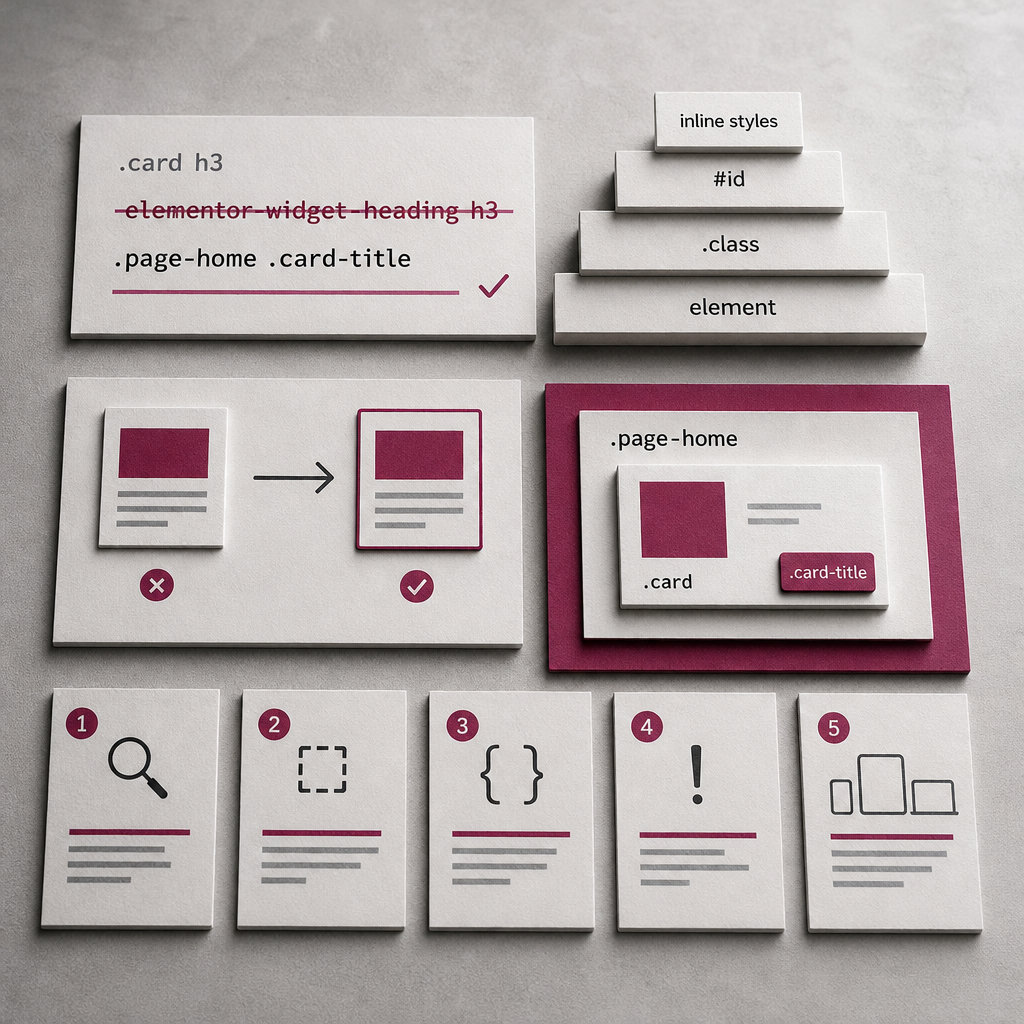
When custom CSS in Elementor does not change an element’s color, spacing, or size, the problem is not necessarily a syntax error or a builder issue. In most cases, your rule loses to another rule in the CSS cascade: it has lower specificity, loads earlier, or applies only within a different media query.
Elementor generates its own classes for sections, containers, and widgets. Page styles can also be affected by the theme, global settings, plugins, and responsive rules. That is why it is important not simply to add more CSS, but to understand exactly which rule wins and why.
What Is CSS Specificity?
Specificity is the relative “weight” of a CSS selector. When several rules change the same property of an element, the browser compares their specificity. The rule with the higher priority wins. If specificity is equal, the rule located later in the code or loaded later is applied.
In a simplified hierarchy, selectors can be arranged as follows: an inline style has greater weight than an ID; an ID has greater weight than classes, attributes, and pseudo-classes; and these, in turn, take precedence over tag selectors. For example, the .card h3 selector is stronger than h3, but it may lose to .elementor-widget-heading .elementor-heading-title.
The number of characters in a selector does not determine its strength. A selector should be more precise, not simply longer. Excessively complex chains create a dependency on Elementor’s internal markup and make the site more difficult to maintain over time.
- h3 — an element selector;
- .card-title — a class selector;
- #header — an ID selector;
- .page-home .card-title — a combination of two classes that usually has greater specificity than a single class;
- [data-type="promo"] — an attribute selector.
.card h3 {
  color: #777;
}

.page-home .card-title {
  color: #222;
}
Why CSS May Not Apply in Elementor
In Elementor, the same property is often defined at several levels: in the widget settings, global styles, the theme’s CSS, and custom code. For example, a heading may receive its color from global heading styles, while a specific Elementor widget may generate a separate rule with a class or inline value.
Another reason is that the wrong styling target was selected. A class may be added to a container while the CSS is written as though the class belongs to the heading itself. Alternatively, a rule may target .card h3 even though the markup contains no h3 element: the widget may use a div or another tag instead.
A style may also be correct but appear ineffective because of another property. The text color changes, but a semitransparent background obscures the result; margin does not produce the expected effect because of flex or grid; width is constrained by the parent container; or display: none hides the element.
- Check that the CSS selector matches the actual HTML structure.
- Determine exactly where the class was added: to a section, container, widget, or inner element.
- Check not only the property itself, but also related rules such as display, position, overflow, width, height, flex, and grid.
- After changing styles, clear the browser cache and the optimization plugin cache, and check whether the generated CSS files have been updated.
How to Find a Conflict in DevTools
The fastest way to diagnose the issue is to use your browser’s developer tools. Open the page, right-click the problematic element, and choose the option for viewing its code. In the Elements or Inspector tab, you can see the HTML structure and the styles applied to the selected element by the browser.
In the Styles panel, find the required property, such as color or margin. A crossed-out rule means that it lost to another rule. The file, line, and selector that set the winning value are usually shown nearby. This tells you exactly what needs to be changed: the selector, the loading order, or the property value.
The Computed tab helps you verify the final value. When you expand a property, you can see which rule became active. If the property does not appear in Styles or Computed, the selector may not be matching the element, or the required rule may not have loaded.
- Select the specific element rather than only its parent container.
- Find the crossed-out rule and compare its selector with your own.
- Check whether another state is active: :hover, :focus, :active, or :visited.
- Enable responsive viewing and check the styles for the required screen width.
- Remember that changes made in DevTools are temporary: transfer them to Elementor CSS, the theme, or a separate file.
How to Increase Specificity Correctly
The best practice is to add a clear class to a parent container or a specific component and build the selector around it. For example, a card container can have the promo-card class, while its heading can have the card-title class. The rule is then clearly limited to the required component and does not affect every heading on the site.
If the page has its own class, you can use it as an additional context level. This is especially useful when one card needs to differ from similar blocks on other pages.
Avoid copying the long selectors Elementor generates for its internal structure when they are not necessary. Classes such as .elementor-element-abc123 may change after an element is edited or recreated. It is more reliable to use your own semantic classes.
- Start with one custom component class.
- Add a state class, such as is-active or has-image, when you need to style a component variant.
- Increase specificity by one level rather than creating a chain of many nested elements.
- Do not use IDs unless necessary: they make style reuse more difficult.
.promo-card .card-title {
  color: #222;
  font-size: 24px;
}

.page-home .promo-card .card-title {
  color: #111;
}
Responsive Rules and Cascade Order
At different screen widths, Elementor may apply separate rules for tablets and mobile devices. Therefore, a style that works on desktop is not necessarily the final style on a narrow screen. If a property is crossed out or has a different value in mobile mode, check the relevant media query.
A custom rule without a media query may lose to an Elementor responsive rule if the latter has higher specificity or loads later. In that case, it is better to create a custom rule for the specific width range than to add !important to the general style.
Remember that Elementor settings can be context-specific. A value set for mobile does not always mean that it applies at all screen widths. Check the result in a real browser, not only in the editor.
- Check desktop, tablet, and mobile widths.
- Compare the media queries in your custom CSS with Elementor’s rules.
- Use a separate, clearly defined media query for mobile changes.
- Check the screen orientation and intermediate widths if the problem does not appear on every device.
@media (max-width: 767px) {
  .promo-card .card-title {
    font-size: 20px;
    color: #333;
  }
}
Why !important Is Not a Universal Solution
The !important declaration increases a rule’s priority, but it does not fix an incorrect CSS structure. If it is used for every problem, future changes become more difficult: overriding such a rule requires even stronger selectors or another !important declaration.
First, identify the source of the conflict and check specificity and rule order. !important may be justified for an exceptional utility style, a temporary override of a third-party widget’s styles, or a situation where an inline style cannot be changed in another way.
If !important is unavoidable, limit it to one specific rule and leave a comment explaining why it is needed. This will make the code easier for another developer to maintain.
- Do not use !important as the first step in the diagnosis.
- Do not add it to every property in the selector.
- After applying it, check the mobile version and other components that use the same class.
- If the conflict was caused by Elementor settings, fix the settings first instead of masking the problem with CSS.
.promo-card .card-title {
  color: #222 !important; /* only if no other override method is possible */
}
Common Mistakes and a Practical Fixing Process
A common mistake is styling all elements through a tag, such as h2 or p. Such a rule may affect other sections. Another mistake is adding a class to one element while writing a selector for a class that does not exist in the markup. Duplicate classes, accidental spaces in class names, and checking styles only in the Elementor editor can also cause problems.
For a systematic fix, use a step-by-step process. First, identify the element and property that are not working. Then check the actual markup and find the active rule in DevTools. After that, adjust the selector or rule order, check responsive states, and only then clear the cache and test the page in different browsers.
- 1. Identify what exactly is not working: color, spacing, size, visibility, or positioning.
- 2. Check the HTML structure and where the class was added.
- 3. Find the crossed-out rule in DevTools.
- 4. Make the selector more precise by using the component’s custom class.
- 5. Check media queries and hover/focus states.
- 6. Clear the cache, refresh the page, and test the result at the required widths.
- 7. Remove temporary or duplicate rules that are no longer needed.
Frequently asked questions
Why does the .card h3 rule not work in Elementor?
The reason may be that there is no h3 element, the class is in the wrong place, or another rule has higher specificity. Check the actual HTML structure and crossed-out styles in DevTools.
Where is the best place to add a custom class in Elementor?
In most cases, it is convenient to add the class to the container or section that serves as the component’s root. This keeps the CSS limited to the required block and prevents it from affecting similar elements elsewhere on the site.
Do I always need to use !important?
No. First check specificity, loading order, media queries, and the widget’s own settings. Reserve !important for exceptional cases where a standard override is not sufficient.
Why does CSS work on desktop but not on mobile?
At mobile widths, separate Elementor responsive rules or your own media queries may be active. Check the active rules in DevTools with responsive viewing enabled and make sure the required selector has sufficient specificity.
Can I use Elementor-generated classes in CSS?
Technically, yes, but for long-term maintenance it is better to use your own semantic classes. Generated classes may depend on the structure or a specific element and can become inconvenient after the page is edited.
Conclusion
Most Elementor styling problems are solved not by adding large amounts of CSS, but by properly diagnosing the cascade. Check the actual markup, find the active rule in DevTools, add a clear class to the component, and increase specificity gradually.
Test desktop and mobile versions separately, do not rely on !important unnecessarily, and remove duplicate rules after fixing the issue. This approach reduces conflicts and helps keep CSS predictable after future changes in Elementor.