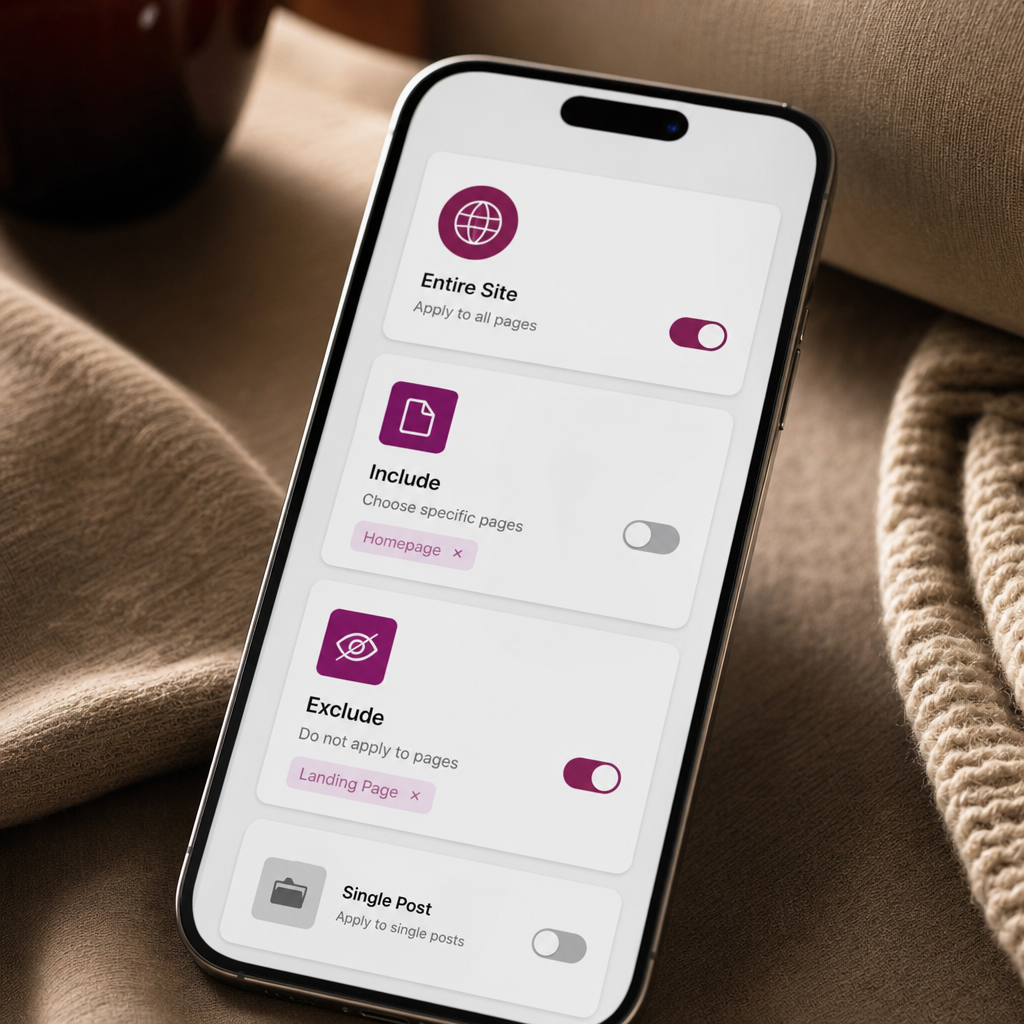
If a website contains multiple Headers, Footers, single post templates, or page templates, Elementor may display a different version than expected. In most cases, the problem is not the design itself but the display conditions: two templates apply to the same page, or a general rule does not include the necessary exclusion.
In Theme Builder, every template has rules that determine where it can be used. To predict the result, you need to understand the difference between Entire Site, Include, and Exclude, and review templates as a system of related rules rather than checking each one separately.
What Are Display Conditions in Theme Builder?
Display conditions are a set of rules Elementor uses to assign a template to specific pages, posts, archives, or other parts of a website. They apply to Header, Footer, Single Post, Single Page, Archive, and other template types available in Theme Builder.
For example, one Header can be assigned to the entire website while another is assigned only to the Contact page. If both templates effectively cover that page, a conflict occurs. In this situation, the result may depend on the condition structure, the template type, and the settings of the particular Elementor version.
- A general rule defines a broad area where the template can be used.
- An inclusion adds a specific page, post, category, or other object.
- An exclusion removes a page or group of pages from a broader rule.
- Two templates with the same scope may compete with each other.
The Difference Between Entire Site, Include, and Exclude
The practical approach is simple: assign Entire Site to the general template and use Include with a more specific condition for the specialized template. If the specialized template must replace the general one, you will often need to add an Exclude condition for the relevant page or content type in the general template.
- Entire Site — the template applies to the entire website or the broadest available area. This is a typical choice for the main Header or Footer.
- Include — the template is added to a specific object or content type. For example, it can apply only to the Contact page, posts in a particular category, or a specific archive.
- Exclude — the template is not used for a specified page or group of pages, even when a broader rule includes them.
How to Configure General and Specialized Templates Correctly
Consider a website with a standard Header for all pages and a separate Header for a Spring Sale landing page. You can leave Entire Site enabled for the standard Header and set Include to the specific page for the promotional Header. If Elementor continues to display the standard Header, exclude the promotional page from the general template's conditions.
- Open Theme Builder and find the required template type.
- For the base template, select a broad scope such as Entire Site.
- For the specialized template, add Include with the specific page, category, or post type.
- If the base template continues to apply to the specialized page, open its conditions and add Exclude.
- Save the changes and check the page in a regular browser window and a private window.
How to Find a Display Condition Conflict
It is useful to temporarily document the conditions in a table with the template name, type, inclusion scope, exclusions, and pages where it should work. This list quickly reveals duplicate templates and overlapping rules.
- Identify which element is displaying incorrectly: the Header, Footer, single post template, or archive.
- Review all active templates of that type in Theme Builder.
- Compare their Include and Exclude conditions.
- Look for templates that use Entire Site or another very broad rule.
- Check whether two templates are assigned to the same page, category, or post type.
- Make sure you are editing the active template rather than a draft or an older copy.
Common Mistakes When Configuring Templates
Avoid keeping several identical templates as backups. It is better to delete unnecessary copies or give them clear names, such as “Header — General,” “Header — Contact Page,” and “Footer — Blog.”
- Several templates use Entire Site. As a result, it is unclear which one Elementor should use.
- A specialized template has an Include condition, but the general template does not exclude that page.
- The user edits one template while a different template with a similar name is active on the website.
- The condition is assigned to the wrong content type. For example, an archive template is being tested on a regular page.
- After making changes, only the browser cache is checked, even though the old result remains in Elementor cache, an optimization plugin, or a CDN.
- The page uses local theme or plugin settings that additionally change how the Header or Footer is displayed.
What to Do After Changing Display Conditions
If the problem remains after clearing the cache, temporarily disable secondary templates of the same type. Once the correct version starts displaying, re-enable the templates one at a time. This makes it easier to identify the source of the conflict.
- Save the template conditions and make sure the changes are published.
- Clear the cache or generated Elementor files using the tools available in your version.
- Clear the cache of the optimization plugin, hosting environment, and CDN if they are enabled.
- Check the page in incognito mode or after performing a full browser refresh.
- Check the page as a logged-in user and as a regular visitor if the website uses role-based caching.
- Test several typical URLs: the homepage, a regular page, a post, an archive, and a page with a specialized design.
Recommended Condition Structure for a Website
The fewer templates with broad conditions a website has, the easier it is to maintain. Conditions should not only work correctly but also be clear to another person who may manage the project later.
- Create one main Header and one main Footer for most pages.
- Add specialized templates only when a different structure is genuinely required.
- Use the most specific Include condition possible for each specialized template.
- Define exceptions with Exclude in the base template when conditions overlap.
- Name templates according to their scope rather than their visual design.
- Review Theme Builder periodically after deleting pages, categories, or old campaigns.
Frequently asked questions
Why does Elementor show the old Header after I change the conditions?
First, check that the changes have been published, then clear the Elementor cache, caching plugin cache, hosting cache, and CDN cache. If the problem remains, check whether another Header uses Entire Site or a condition that covers the same page.
Can Entire Site be used for multiple templates?
Technically, broad conditions can be assigned to multiple templates, but this creates overlaps and makes the result harder to predict. For the base version, it is better to keep one general template and limit the others with specific Include conditions.
What is Exclude used for in a general template?
Exclude removes a specific page, post, or group of objects from a broad rule. For example, it allows you to hide the general Header on a landing page that has its own specialized template.
What is the difference between Single and Archive templates?
Single usually controls the layout of an individual post or page, while Archive controls a list of posts, a category, a tag, or another archive. Conditions must be checked in the context of the template type: the correct Single template will not replace an archive template.
What should I do if the conditions are correct but the template does not appear?
Check the template status, page type, active theme, and any settings that hide the Header or Footer. Also clear all cache layers and temporarily disable other templates of the same type to isolate the problem.
Conclusion
In Theme Builder, it is not enough to create the required template; you must also define its scope precisely. Use a broad rule for the general design, a specific Include condition for exceptions, and control overlaps with Exclude.
If Elementor displays the wrong Header, Footer, or post template, start by auditing all conditions for that template type. Remove duplicates, check template status, clear the cache, and test several different pages. This approach usually identifies the cause faster than repeatedly editing the layout itself.