After editing a page in Elementor, you may still see an old heading, previous spacing, or an unchanged button color. This does not necessarily mean that Elementor failed to save your changes. In most cases, the browser, optimization plugin, server, or CDN is still delivering a cached copy of the page or CSS files.
You do not need to clear every cache without checking the cause first. It is better to review each caching layer in sequence: Elementor, the caching plugin, the server, the CDN, and the browser. This approach helps you identify the issue faster and avoids placing unnecessary load on the site.
Why Elementor Changes Are Not Visible
A WordPress site may use several independent caching mechanisms. Elementor generates and stores CSS files, an optimization plugin may cache HTML, styles, and JavaScript, the server may cache ready-made page responses, and a CDN may store copies of resources on its edge nodes. The visitor's browser stores a separate cache as well.
As a result, the editor may show the new version immediately after you save the page, while a regular visit to the site still displays the old one. Sometimes changes are visible to a logged-in administrator but not to a guest or a user in another browser. This is often caused by different caching rules for authenticated and unauthenticated visitors.
It is also important to distinguish between different types of issues. If the text or image has not changed, HTML caching is the more likely cause. If spacing, width, font, or color has not been applied, the problem may involve Elementor's CSS cache, the order in which styles are loaded, or a conflict with an optimization feature.
- An old page or old text usually indicates an HTML cache issue.
- An old version of the styles: check Elementor CSS and the optimization cache.
- A problem only on mobile: check responsive settings and the mobile cache.
- Changes visible in one browser but not another: the browser cache or CDN is a likely cause.
First, Determine Where the Old Version Remains
Before clearing any cache, open the page in an incognito or private window. If the new changes appear there, the problem is most likely local: the regular browser has stored old files or an old page copy.
If the old version appears in the same way in an incognito window, on a phone, and on another device, check the site's cache. In this situation, clearing the local browser cache will not help.
For troubleshooting, it is useful to check the page both while logged in and as a regular visitor. This helps you determine whether the site is delivering different content to administrators and guests.
- Compare the page in a regular window and a private window.
- Check it in another browser or on another device.
- See whether the same problem occurs on a computer and a smartphone.
- Make sure you are opening the correct URL, not a duplicate page or an older version.
- If the changes affect a form, menu, or dynamic data, check them not only in the editor but also as a regular visitor.
Refresh Elementor CSS and Data
After changing styles, Elementor may need to regenerate its CSS files. In the WordPress admin panel, open the Elementor tools, find the general tools tab or section, and use the Regenerate CSS & Data command. The name or location of this option may vary slightly between Elementor versions.
This operation makes Elementor regenerate its stylesheet files and synchronize the data used by the pages. It is particularly useful when spacing, colors, typography, or responsive settings do not take effect after editing.
After regeneration, open the page again with a hard refresh. If the site uses a caching plugin, refreshing CSS in Elementor alone may not be enough: the old file may still be stored in the plugin cache or on the CDN.
- Save your changes in the Elementor editor before regenerating the files.
- Run Regenerate CSS & Data once and wait for the operation to finish.
- Check the page on the frontend, not only in the editor.
- If the command does not solve the issue, move on to the next caching layer.
Clear the Plugin, Server, and CDN Caches
If the changes are still not visible after refreshing Elementor CSS, clear the cache of the optimization plugin. Depending on the solution, the command may be called Clear Cache, Purge Cache, Flush Cache, or something similar. Clear the site cache specifically rather than changing all optimization settings unnecessarily.
Next, check the server cache. Some hosting providers use caching at the web-server or control-panel level. In that case, the clearing button in WordPress will not remove the copy stored by the server. The name of the function depends on the hosting provider, so use its control panel or documentation as a guide.
If the site uses a CDN, run Purge Cache for the required resource or for the entire zone if selective purging is unavailable. The CDN may need some time to refresh copies across different nodes, so check the result after a few minutes in a private window.
- Start by clearing the WordPress optimization plugin cache.
- Then clear the server cache if your hosting provider has enabled one.
- For a CDN, use Purge Cache or clear the specific URL.
- Do not permanently disable optimization because of a one-time cache issue.
- After clearing the cache, check not only the homepage but also the specific page you edited.
Refresh the Browser Cache and Check the Mobile Version
For a quick check, perform a hard refresh of the page. In many browsers, this is done with Ctrl+F5, although the method may vary depending on the operating system and browser. If this does not help, clear the cache for the specific site or check the page in a private window.
There is no need to immediately delete your entire browser history, passwords, or data for every site. For troubleshooting, it is enough to refresh the page locally or clear temporary files for the specific domain.
Check the mobile version separately. Elementor lets you set different values for desktop, tablet, and phone, while optimization plugins and CDNs may maintain separate cached copies. Check not only the screen width but also hidden elements, block order, font size, and spacing.
- Perform a hard refresh of the page.
- Check the result in a private window.
- Open the site on a real smartphone, not only in an emulation mode.
- Make sure mobile values are not inheriting old settings.
- If the changes are visible on a computer but not on a phone, clear the relevant cache and check the CDN.
Common Mistakes When Clearing the Cache
The most common mistake is clearing only the browser cache when the old version is actually stored on the server or in the CDN. The opposite extreme is deleting every cache at every level after each minor edit. This slows the site down for visitors and makes troubleshooting more difficult.
You should also avoid changing caching, CSS minification, and JavaScript settings at the same time. If the problem disappears or returns afterward, it will be difficult to determine which action affected the result.
Pay special attention to optimization conflicts. Combining or deferring the loading of CSS and JavaScript can sometimes affect how Elementor is displayed. If the problem returns after clearing the cache, temporarily test the site with optimization features disabled one at a time rather than all at once.
- Do not clear every caching layer without first checking where the issue occurs.
- Do not edit a page in one environment while checking an old copy in another.
- Do not draw conclusions based only on how the page looks in the Elementor editor.
- Do not disable all plugins on a live site without a backup and a testing plan.
- After each action, check the result and record what changed.
A Quick Troubleshooting Sequence
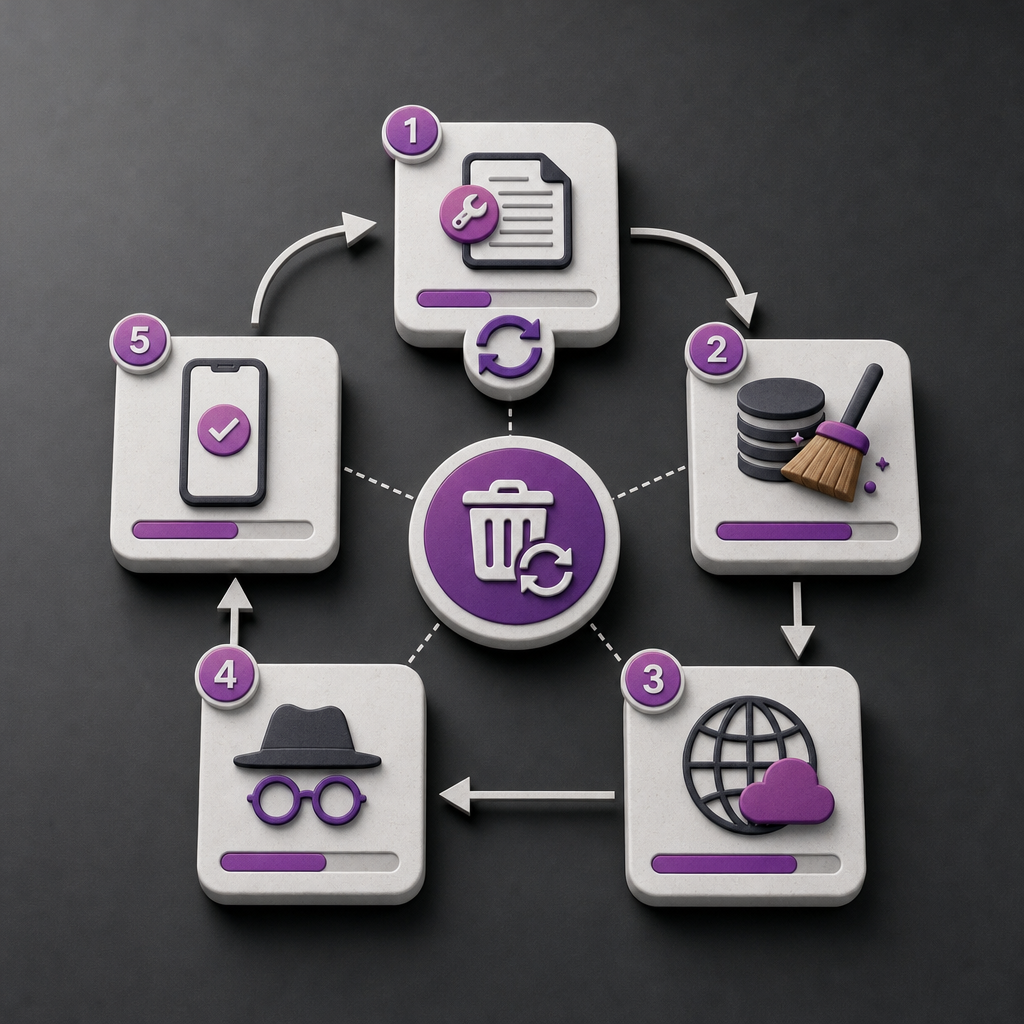
If you need to update a page quickly after editing it, work from the nearest caching layer to the most distant one. In most cases, regenerating Elementor CSS, clearing the plugin cache, and hard-refreshing the browser are enough. Check the server and CDN caches if the issue persists across different devices.
- Save the changes in Elementor.
- Run Regenerate CSS & Data in the Elementor tools.
- Clear the optimization plugin cache.
- Clear the server cache if it is provided by your hosting company.
- Run Purge Cache in the CDN if the site uses one.
- Open the page in an incognito window or perform a hard refresh.
- Check the desktop and mobile versions separately.
- If the old version remains, check for optimization conflicts or contact your hosting provider's support team.
Frequently asked questions
Do I need to clear the entire cache after every change in Elementor?
No. For a minor edit, first try a hard browser refresh; for style changes, regenerate Elementor CSS. Clear all caching layers only when the old version remains in the plugin, server, or CDN cache.
Why are changes visible in Elementor but not on the site?
The editor may display current data without using the same cached copy that a regular visitor receives. Refresh Elementor CSS, clear the plugin cache, and check the page in a private window.
Will clearing the browser cache help if the changes are not visible to anyone?
Most likely not. If the old version appears on different devices and in different browsers, check the plugin, server, or CDN cache.
What should I do if the problem occurs only on mobile?
Check Elementor's mobile settings, separate spacing and sizing values, and the mobile cache in the plugin or CDN. Always test the page on a real smartphone.
What should I do if clearing the cache does not help?
Check that you are editing the correct page, make sure styles from another plugin or the theme are not overriding your settings, and check whether CSS and JavaScript minification features are interfering. If the issue depends on the hosting environment, contact hosting support.
Conclusion
When changes in Elementor are not visible, do not immediately edit the page again or disable all plugins. First determine which caching layer is delivering the old version: Elementor, a WordPress plugin, the server, the CDN, or the browser.
A systematic check, CSS regeneration, clearing the necessary cache, and a separate mobile test usually solve the issue faster than repeatedly deleting all cached data at random.