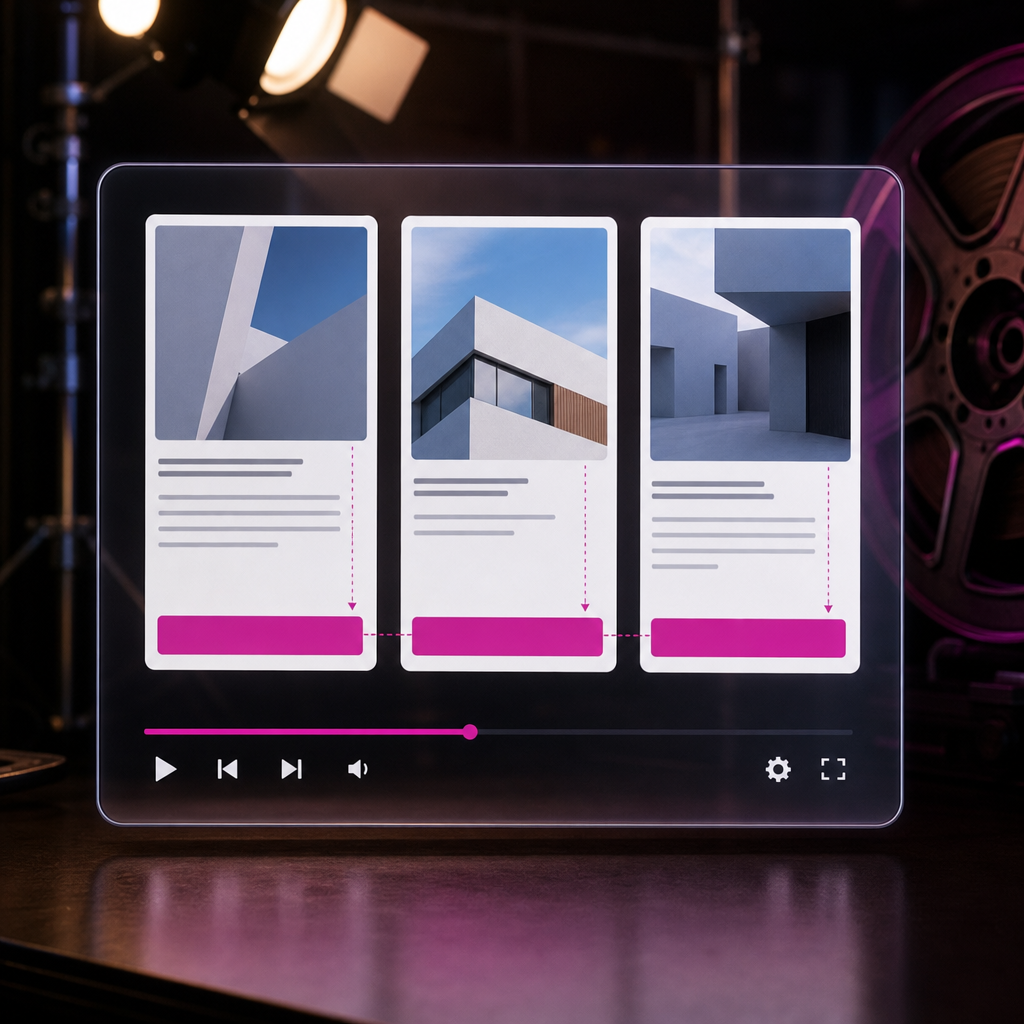
In product, blog post, or service cards, buttons often appear at different heights. The reason is simple: headings and descriptions have different lengths. In one card, the text may take up two lines, while in another it takes four, pushing the button farther down.
The most convenient solution is not to set a fixed card height, but to use an internal Flexbox structure. When the main card container is arranged vertically and the button container receives margin-top: auto, the button is pushed to the bottom edge of the available space. This helps create a clean layout in Loop Grid, standard cards, and WooCommerce sections.
Why Buttons in Cards Are Not Aligned
A typical card consists of an image, heading, short description, price or additional data, and a button. Most of these elements have a natural height that depends on their content. If a product name takes up two lines in one card and five in another, every following block is shifted as well.
A standard vertical layout does not give the button a way to occupy the available empty space. It simply follows the description, so CTA buttons in neighboring cards do not form a single horizontal line.
The problem is especially noticeable in catalogs, article lists, and sections with several calls to action. On mobile devices, unevenly positioned buttons can also make interaction more difficult because users cannot compare cards or tap the desired element as easily.
- Headings have different lengths;
- Descriptions contain different amounts of text;
- Some cards include additional specifications or a price;
- The card's internal container does not stretch across the available height;
- The button is not separated into its own bottom block.
How margin-top: auto Works in Flexbox
The margin-top: auto property works as a filler for available vertical space. It adds an automatic top margin and pushes the element toward the bottom edge of the Flex container.
For this to work, the parent container must be a Flex container with its direction set to Column. In this structure, elements are arranged from top to bottom: image, heading, description, additional data, and button. The automatic top margin on the button container occupies all available space between the text and the bottom of the card.
Important: margin-top: auto does not create equal card heights by itself. It aligns the button only when the cards or their internal containers already share the same available space. In Grid and Loop Grid layouts, this often happens because items stretch within the row, but the structure still needs to be checked.
- The card's Flex container has its direction set to Column.
- The button container is a child of this Flex container.
- The button container has margin-top: auto applied.
- The parent container can stretch vertically.
- The card does not have an unnecessary fixed height.
Setting Up the Card in Elementor
This approach is best applied to the internal container of each card rather than to the entire page section. First, identify the container that groups the content of one card: the heading, description, metadata, and button.
The names of interface options may vary slightly depending on the container type and Elementor version, but the setup logic remains the same.
- Open the main internal container of the card.
- In the Layout settings, set the element direction to Column.
- Make sure the child elements appear in the desired order, with the text section above and the button below.
- Select the container that holds the button. If the button does not have its own container, create one or wrap the button in a container.
- In the Advanced settings, set the top margin of this container to auto. Do not set auto on all four sides.
- Preview the card and compare it with the neighboring elements.
An Example of the Correct Structure
A logical structure may look like this: the outer grid element contains the main card container, which contains the image, heading, description, and button container. The main container is responsible for the vertical Flex structure, while the button container receives the automatic top margin.
If the image needs to remain separate from the text section, you can use two levels: an outer card container and an inner content container. In that case, apply margin-top: auto to the button block inside the content container, which must fill the available height.
- The card is the main vertical Flex container.
- The heading and description remain at the top.
- The button is placed in a separate bottom container.
- The automatic margin is applied only to the top of the button block.
How to Get Equal Card Heights Without a Fixed height
A fixed card height may seem like a quick solution, but it often creates new problems. A longer heading may not fit, the description may be cropped unpredictably, and the same height may be too large or too small on a mobile screen.
It is better to let the grid determine the row height based on the tallest card and allow each card to stretch within that row. The internal Flex container can then use the available space and move the button downward.
Check whether cards in the same row have the same visual height. If one card remains shorter, the problem may not be margin-top: auto, but rather the alignment settings of the parent Grid section or container.
- Do not set a fixed height unless there is a specific need.
- Check whether the parent grid stretches items within the row.
- Make sure the card's internal container occupies all available height.
- Do not use large, equal padding values or min-height as a replacement for Flexbox.
- Test desktop, tablet, and mobile versions separately.
Limiting Description Length with line-clamp
Even after aligning the buttons, cards may still look uneven if one contains a very long description. For a more consistent layout, you can limit the number of lines with the CSS line-clamp property.
This technique hides part of the text after the specified number of lines and usually adds a visual truncation. Use it only for short excerpts, card descriptions, or previews. The complete text should remain available on the post or product page.
Add a class such as card-excerpt to the widget or container that contains the description, then apply the following CSS in the appropriate place in your project:
- For headings, two or three lines are often enough.
- Short descriptions usually use more lines than headings.
- Check that truncated text does not hide an important feature or purchasing condition.
- Do not apply line-clamp to buttons, prices, or legally important information.
.card-excerpt {
  display: -webkit-box;
  -webkit-box-orient: vertical;
  -webkit-line-clamp: 3;
  overflow: hidden;
}
Common Mistakes and How to Check the Result
The most common mistake is setting margin-top: auto without using a Flex container. In a standard Block container, an automatic margin will not act as a vertical spacer. Another common issue is applying it directly to the button when the button is not placed in the required parent structure. Using a separate CTA container is more reliable.
You should also avoid adding a large fixed height simply to make the buttons line up. If the fonts, site language, or content length changes, the cards may start cropping text or creating excessive empty space.
- Check that the main container direction is Column rather than Row.
- Make sure the button or its wrapper is a child of the correct container.
- Check whether the internal container has enough height for the auto margin to work.
- Test long headings, empty descriptions, and cards with additional fields.
- Check the result on a narrow screen; the button should remain easy to tap.
- Do not use negative margins to manually align individual cards.
When margin-top: auto Has No Visible Effect
If all cards have exactly the same content height, the automatic margin may be zero, which is normal. The effect will also be absent if the card does not stretch to the row height or if its height is fully determined by short content.
In this situation, inspect the structure using your browser's developer tools or temporarily add backgrounds and borders to the containers. This makes it easier to see which block has available empty space and where the Flex direction needs to be set.
- No available space means there is nothing for the auto margin to fill.
- If cards do not stretch within the row, their buttons cannot share the same bottom line.
- If the margin is applied to the wrong element, the structure will not work as expected.
Where to Use This Approach
This method works well for Loop Grid post cards, product catalogs, service blocks, portfolios, and repeating sections with CTAs. It is equally useful for buttons such as “Learn More,” “Buy Now,” “Add to Cart,” or “View Product.”
In WooCommerce, you also need to account for the price, variations, stock messages, and standard buttons. If the set of elements differs between cards, group the lower section in one container and apply auto margin to that container.
For the mobile version, you do not necessarily need to preserve the same card density. If cards switch to a single column on narrow screens, button alignment will still remain correct, while the text can be displayed in full or limited with a separate responsive rule.
- Loop Grid for posts and products.
- Grids with service or case study cards.
- WooCommerce catalogs.
- Repeating blocks with the same CTA.
- Responsive sections where the number of columns changes.
Frequently asked questions
Can Elementor buttons be aligned without CSS code?
Yes. If Elementor lets you set the container direction to Column and apply an automatic top margin through the Advanced panel, no additional CSS is required. CSS may only be needed for line-clamp or more complex conditions.
Why are the buttons still at different heights after setting margin-top: auto?
Most often, the cards do not share the same available height, the internal container is not stretching, or auto margin was applied to the wrong element. Check the Flex direction, container structure, and alignment settings of the parent grid.
Do I need to set a fixed height for the card?
Usually not. It is better to let the grid and Flexbox distribute space naturally. A fixed height can cause cropped text and layout problems on different screens.
Does this method work with WooCommerce?
Yes, provided the button and the other product card content are placed in a correctly configured Flex container. With WooCommerce, you should also check cards with different prices, variations, and stock messages.
Is it necessary to use line-clamp?
No. line-clamp is only needed when you want to limit the height of headings or descriptions. For accessibility and complete information, do not apply it to text that users need to read in full.
Conclusion
To align buttons in Elementor cards, build the card as a vertical Flex container, place the button in a separate bottom block, and set margin-top: auto on that block. Do not replace this logic with a fixed height, as fixed heights adapt less effectively to different content lengths.
If you need to preserve a consistent card layout, you can additionally limit the heading or description with line-clamp, and always check the result at different screen widths. This structure remains flexible, easy to edit, and suitable for Loop Grid, standard sections, and WooCommerce.