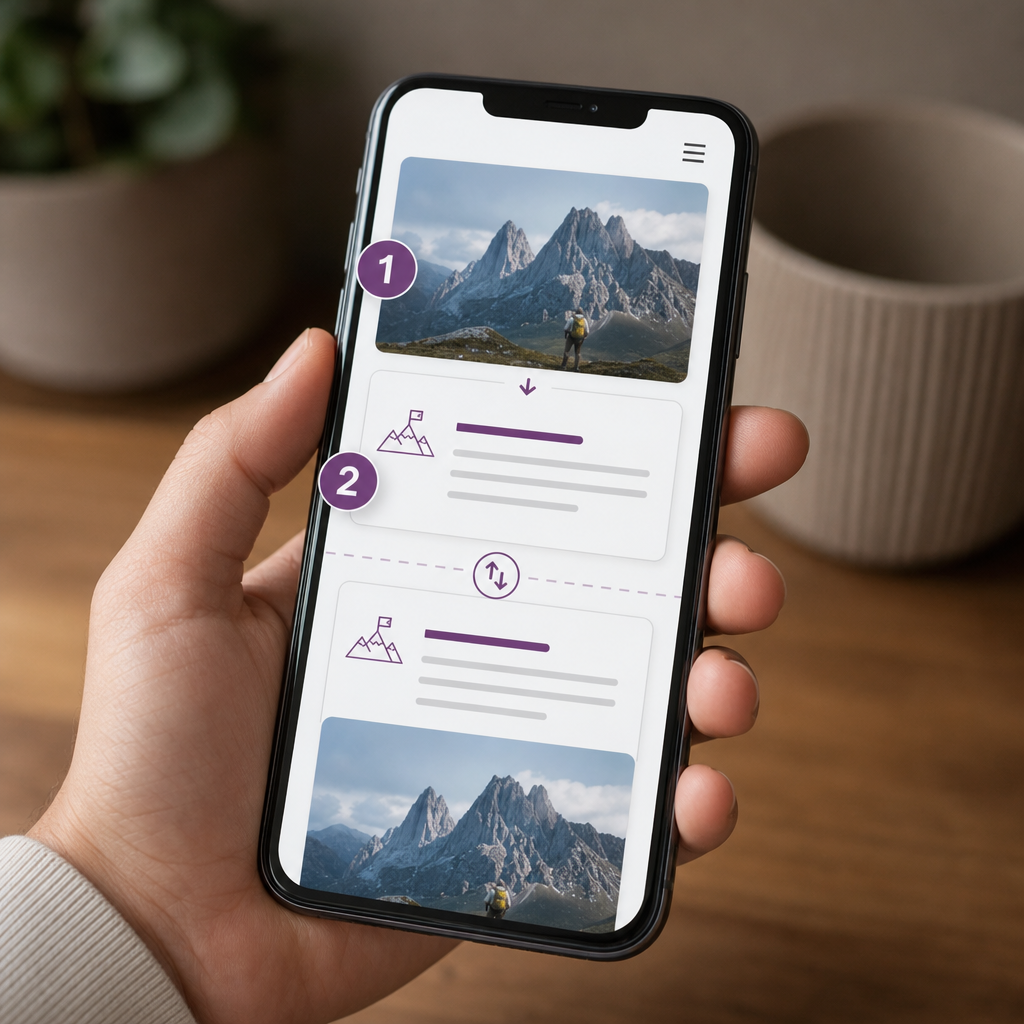
On mobile, page blocks often need to appear in a different order than they do on desktop. For example, a wide layout might place text on the left and an image on the right. On a smartphone, it may be more effective to show the image first and the description afterward. In Elementor, you can do this with the Order property in Flexbox containers.
This approach lets you change the visual order of child elements without copying sections or creating a separate mobile version of the content. However, it is important to understand the limitations of the CSS order property: it changes the visual presentation but does not rearrange the elements in the HTML code.
When Should You Change the Order of Blocks?
Elementor Flexbox containers are useful for responsive layouts in which the same elements need to be arranged differently across screen sizes. The most common scenario is a two-column desktop layout that becomes a vertical stack on mobile.
For example, on desktop, a service section might present a heading, text, and button first, with an image beside them. On mobile, it may be more effective to display the image before the text. Instead of duplicating the container for different devices, you can simply change the order of the child elements in responsive mode.
This method is particularly useful when you need to rearrange entire child containers, such as a text block, illustration, card, form, or CTA block. If only the internal positioning of elements needs to change, first check the Flexbox direction, width, and alignment settings.
- two columns need to stack correctly on mobile;
- an image needs to appear before or after the text;
- you want to avoid duplicating content for different devices;
- the same block should retain shared styles and content across all breakpoints.
How to Change the Order of Elements in Elementor
Before you begin, make sure the layout is built with Flexbox containers and that the blocks you want to rearrange are child elements of the same parent container. The order property affects elements within a single Flex container. It will not move a block that belongs to a different parent container.
The names or locations of individual settings may vary slightly depending on the Elementor version and the type of element selected. In the typical interface, the required setting is located under Layout for the child element.
- Open the page in the Elementor editor.
- Select the parent Flexbox container and confirm that the required blocks are its direct child elements.
- Click the first child container or widget you want to move.
- Find the Order setting under Layout.
- Switch to responsive view for the required breakpoint, such as mobile.
- Enter a numeric order value and repeat the process for the other adjacent elements.
- Review the page at the required screen width and save your changes.
Example with Two Elements
Suppose the parent container includes a text block and an image. On desktop, the text should appear first and the image second. On mobile, the image should be displayed before the text.
In mobile responsive mode, set Order: 2 for the text block and Order: 1 for the image. A lower value is displayed earlier. If the values are the same, the original order in the document structure is usually preserved.
- Desktop: text first, image second.
- Mobile: image — Order: 1, text — Order: 2.
- For a predictable result, assign values to all elements involved in the rearrangement.
How Order Works in Flexbox
Order is a numeric CSS sorting value for flex items. The browser places child elements from the lowest value to the highest. Elements without an explicitly defined order behave as though they have the default value of 0.
For example, a value of -1 appears before elements with a value of 0, while a value of 2 appears later. You do not have to use a sequence such as 1, 2, 3; only the relationship between the numbers matters.
A responsive value applies to a specific screen width or breakpoint. If a separate value is not defined for a smaller screen, it may be inherited according to Elementor's responsive settings logic. After editing, you should therefore check not only the mobile view but also the tablet view if it is used in the layout.
- A lower value places an element closer to the beginning of the flex row or stack.
- The same order value does not create additional sorting; the original HTML order remains important.
- Order works only between elements in the same Flex container.
- Changing order does not affect absolutely positioned elements, elements outside the container, or PHP and JavaScript logic.
What to Check After Changing the Order
The visual result should be checked at the actual screen width, not only through the editor's simulated preview. The breakpoint, spacing, text wrapping, and image height can all affect how the block is perceived.
After rearranging the elements, make sure that content does not overlap, the button remains accessible, and there are no excessive gaps between blocks. Pay particular attention to containers with background images, minimum heights, or nonstandard alignment settings.
- Check the mobile, tablet, and desktop views.
- Make sure the container direction on mobile is correct, such as column or another configured option.
- Check the spacing, gap, width, height, and alignment after rearranging the elements.
- Test long headings, images with different heights, and versions with or without the button.
- Open the page in several browsers and on a physical smartphone if the block is important for conversions.
SEO, Accessibility, and HTML Order
The order property changes only the visual arrangement of flex elements. The order of nodes in the HTML remains the same as it was created in the page structure. This matters for screen readers, keyboard navigation, focus order, and how content is understood by search engines.
For example, if the HTML places text containing an important instruction before an image, visually moving the image above the text does not guarantee that a screen reader user will encounter them in that same order.
For this reason, it is best to build the logical structure correctly from the beginning. Use order for presentational changes when rearranging the elements does not disrupt the reading flow. If the change is essential to understanding the information, it is safer to modify the HTML structure or the container layout instead of relying only on CSS.
- Do not place an important instruction after a button simply because it looks better on screen.
- Check the focus order when navigating with the Tab key.
- Do not use CSS-hidden duplicates as the primary way to create a mobile version.
- Keep headings, text, and interactive elements in a logical structure.
- For complex rearrangements, test the page with a screen reader or consult an accessibility specialist.
Common Mistakes and Alternatives
The most common mistake is changing the order on a parent container while expecting it to rearrange the elements inside that container. You must select the correct structural level for each element: order should be assigned to the child container or widget that participates in the relevant Flex container.
Another problem occurs when some elements have an assigned order while others retain the default value. The result may be difficult to predict, especially when the container includes more than two blocks. Define the order of all elements that need to be controlled.
If the rearrangement is needed to change the content's logical flow rather than its visual presentation, use a different approach: rebuild the HTML structure, divide the content into logical containers, or change the element direction without disrupting the reading order.
- Do not use order for elements that are not siblings in the same Flex container.
- Do not confuse order with alignment, direction, or positioning settings.
- Do not duplicate headings, text, and buttons unnecessarily to create a mobile layout.
- After clearing the cache, check the page in a private browser window.
- If the changes are not visible, check the breakpoint, cache, CSS overrides, and parent container settings.
Frequently asked questions
Can I change the order of elements only on mobile?
Yes. Open the Order setting for the required child elements, activate the relevant responsive view, and assign values for the mobile breakpoint. Then check whether an unwanted value is being inherited from another mode.
Do I need to duplicate blocks for desktop and mobile versions?
Usually not. If only the visual order differs, Flexbox and the responsive Order setting are sufficient. Duplication creates unnecessary content and makes the page more difficult to maintain.
Why is Order not working in Elementor?
Check whether the elements are direct child elements of the same Flex container, whether another structural layout type is being used, and whether the correct breakpoint is selected. Also check the container direction, cache, and possible CSS overrides.
Does changing Order affect SEO?
It does not change the HTML order, but it can change the visual reading flow. For SEO and accessibility, the logical order of the content in the HTML should remain clear and should not conflict with its visual presentation.
Conclusion
Order in Elementor Flexbox containers is a practical way to adapt a layout for mobile screens without duplicating content. To use it, change the order of child elements under Layout and assign the required values for the relevant breakpoint.
Use this feature primarily for presentational changes, while keeping the logical sequence of headings, text, buttons, and forms correct in the HTML. After configuring the layout, check every responsive mode, keyboard navigation, and the page display on a real mobile device.