An attacker does not necessarily need to alter the appearance of a website. They may add a backdoor to a core, plugin, or theme file and then use it to regain access, send spam, or steal data. Such changes often remain unnoticed during normal page browsing.
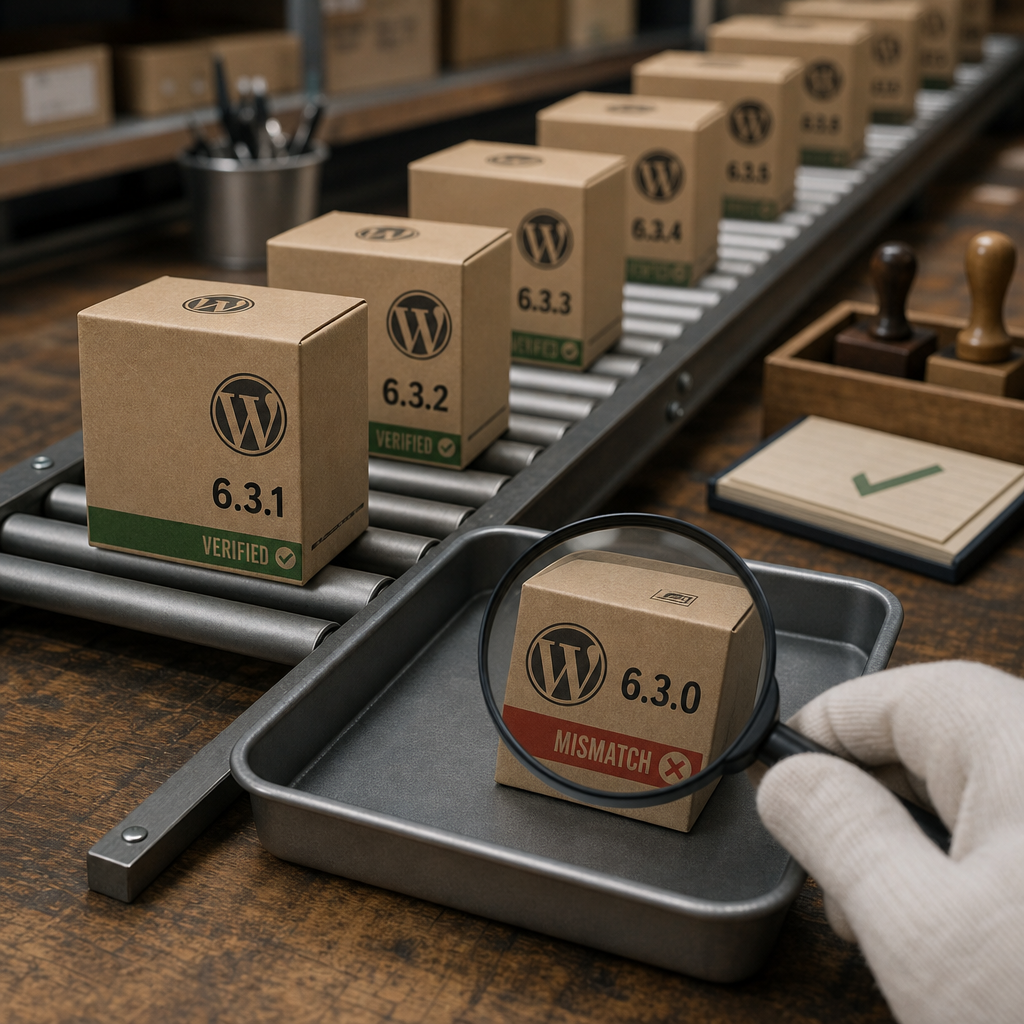
Checksum verification helps identify differences between files on the server and the official WordPress or plugin files. It is not a complete security assessment, but it is a fast and practical way to check key components after an incident, an update, or on a scheduled basis.
What Checksums Actually Verify
A checksum is a short value calculated from a file’s contents. Even changing a single character will usually produce a different result. WP-CLI obtains reference checksums for the relevant version of WordPress or a plugin and compares them with the files on the server.
For WordPress core, this check can detect modified, missing, or extra files included in the distribution. For plugins, verification generally works when the plugin is available in the official WordPress directory and checksums exist for its version.
A mismatch does not always indicate a compromise. It may be caused by an incomplete update, manual editing, a developer patch, a copying error, or hosting-specific behavior. However, every mismatch should be investigated rather than ignored.
- The check does not analyze database contents, user settings, or access permissions.
- It does not guarantee the detection of malicious code in uploaded files, custom plugins, or must-use plugins.
- Matching checksums confirm that specific files correspond to the reference version, but they do not prove that the entire website is secure.
Preparing for a WP-CLI Check
Run commands from the directory containing wp-config.php, or pass WP-CLI the --path parameter with the correct WordPress path. Commands should be executed by the user account under which the website or hosting environment runs. Do not use root unless necessary: a command-line mistake made as root can damage files or change their permissions.
Create a backup before correcting any problem. If there are signs of a compromise, first make a separate copy of suspicious files and record their state. Do not immediately overwrite them with an update, as this may destroy evidence and make it harder to identify the entry point.
Verify that WP-CLI works and that the site runs with the expected PHP version. This helps distinguish an environment problem from a genuine file mismatch.
- Back up the files and database.
- Record the date and time of the check.
- If several installations are hosted on the server, confirm that you are working with the intended site.
- If possible, restrict access to the website while responding to the incident.
wp --info
wp core version
wp plugin list
Checking WordPress Core and Plugins
Run wp core verify-checksums to verify core files. WP-CLI identifies the installed WordPress version and compares its files with the official distribution. If the command reports a successful verification, the checked files match the reference version.
All installed plugins for which official checksums are available can be checked with a single command. Premium, custom, or private extensions may be skipped. This is normal and does not prove that they are secure.
- After updating WordPress core: verify the WordPress files again.
- After installing or updating extensions: run a plugin check.
- After suspicious activity: check the core, plugins, and themes, and analyze the logs as well.
wp core verify-checksums
wp plugin verify-checksums --all
Checking Themes
A similar check may be available for themes from the official WordPress directory. It is especially useful for a default theme or a theme that has not been manually edited. Checksums are often unavailable or not meaningful for child themes and custom templates because their files are intentionally different from the original.
- Do not overwrite a custom theme with a standard copy without creating a backup.
- Check theme files separately if unknown PHP files or suspicious code have appeared in the theme.
wp theme verify-checksums --allHow to Read the Results and Respond to a Mismatch
The result must be considered in context. A mismatch in a file that an administrator knowingly edited has a different explanation from an unexplained change to a standard core file. Unknown PHP files, changes made within the last few hours, code containing command-execution functions, or files that do not belong to the current package are especially suspicious.
Do not replace a suspicious file blindly or delete it immediately. First copy it to an isolated location and record its checksum, owner, permissions, and modification time. Then compare the file with a clean version of the relevant package and review the access logs.
- Check the file modification time and compare it with login, update, and website request logs.
- Compare the suspicious file with a clean distribution of the same version.
- Check whether other files in the same directory have also been modified.
- Change WordPress administrator, SSH, FTP, or hosting-panel passwords if there is a risk of compromise.
- Review WordPress users, cron jobs, must-use plugins, and configuration files.
stat wp-content/plugins/example-plugin/example.php
sha256sum wp-content/plugins/example-plugin/example.php
find wp-content -type f -name '*.php' -mtime -7 -print
Restoring Modified Files
If a core or plugin file has genuinely been modified and no custom changes need to be preserved, the safer approach is to replace the entire component with a clean distribution of the appropriate version. Editing or replacing only one file may leave another backdoor in the same package.
Updating or reinstalling does not fully resolve the problem if the attacker has already gained access to the website. After replacing files, check accounts, passwords, permissions, scheduled tasks, web-server configuration, and logs. You should also determine how the intrusion occurred.
Do not restore files from a backup if you do not know when it was created or whether it may already contain the compromise. Use a backup whose origin and date can be verified.
- For core files, use the official distribution of the same version or a controlled update.
- For a plugin, use a clean package from its developer or the official directory.
- Repeat the checksum verification after restoring the files.
- If the infection returns, temporarily isolate the website and involve an incident-response specialist.
How to Check Premium and Custom Plugins
WP-CLI may not have reference checksums for paid, private, or custom plugins. In that case, obtain a clean distribution from the vendor’s account area or internal repository and compare it with the version on the server.
It is important to compare identical versions. If the developer has released an update, differences between the old and new packages are not evidence of an infection. It is useful to retain release archives and their SHA-256 checksums in an internal tracking system.
For custom development, use a repository with change tracking, mandatory code review, and restricted production access. This makes it possible to associate every change with a specific commit and responsible developer.
- Do not download plugin distributions from random websites.
- Verify the package signature or checksum if the vendor publishes one.
- Compare the entire directory, not just the main plugin file.
- Check separately for files created by the plugin during operation.
diff -ruN /path/to/clean-plugin/ /var/www/example.com/wp-content/plugins/example-plugin/
sha256sum /path/to/clean-plugin.zip
How to Set Up Regular Integrity Checks
Run checks after an incident, before and after important updates, and periodically on a schedule. The frequency depends on the importance of the website and the monitoring available, but it is important not to run commands without reviewing their results.
For automation, WP-CLI can be executed from cron and its output written to a log. However, simply having a log file is not useful if nobody reviews it. Automation should notify the responsible person about an error or a change in the verification status.
Scheduled checksum comparisons work best when combined with backups, updates from trusted sources, restricted write permissions, and web-server log monitoring.
- Store verification results separately from the server itself.
- Do not allow the web process to write to core and plugin files unless necessary.
- Use a staging environment to test updates.
- Document planned manual changes so they are not confused with unauthorized modifications.
cd /var/www/example.com && wp core verify-checksums >> /var/log/wordpress-integrity.log 2>&1
cd /var/www/example.com && wp plugin verify-checksums --all >> /var/log/wordpress-integrity.log 2>&1
Frequently asked questions
Does a checksum error mean that the website has definitely been hacked?
No. The cause may be a manual change, an incomplete update, a local patch, or a corrupted file. However, an unexpected mismatch in a standard file should be investigated as a potential incident.
Why does WP-CLI not check my premium plugin?
Reference checksums are often unavailable for private or paid plugins. Download a clean package from the vendor and compare it with the files on the server.
Can I immediately reinstall a component with a mismatch?
If there is no need to preserve evidence, you can replace the component with a clean distribution. If a compromise is suspected, first copy the file, record its attributes, and review the logs.
Are checksum checks sufficient to protect WordPress?
No. They verify only whether available files match a reference version. You also need updates, backups, account protection, log analysis, database checks, and monitoring of uploaded files.
Conclusion
WP-CLI makes it possible to quickly check the integrity of WordPress core, plugins, and some themes without manually reviewing every file. The wp core verify-checksums and wp plugin verify-checksums --all commands are useful after updates, suspicious activity, and as part of regular audits.
The most important part is responding correctly to the result. Preserve a copy of suspicious files, check modification times and logs, compare the component with a clean distribution, and only then restore it. For custom and premium extensions, establish separate version and checksum controls.