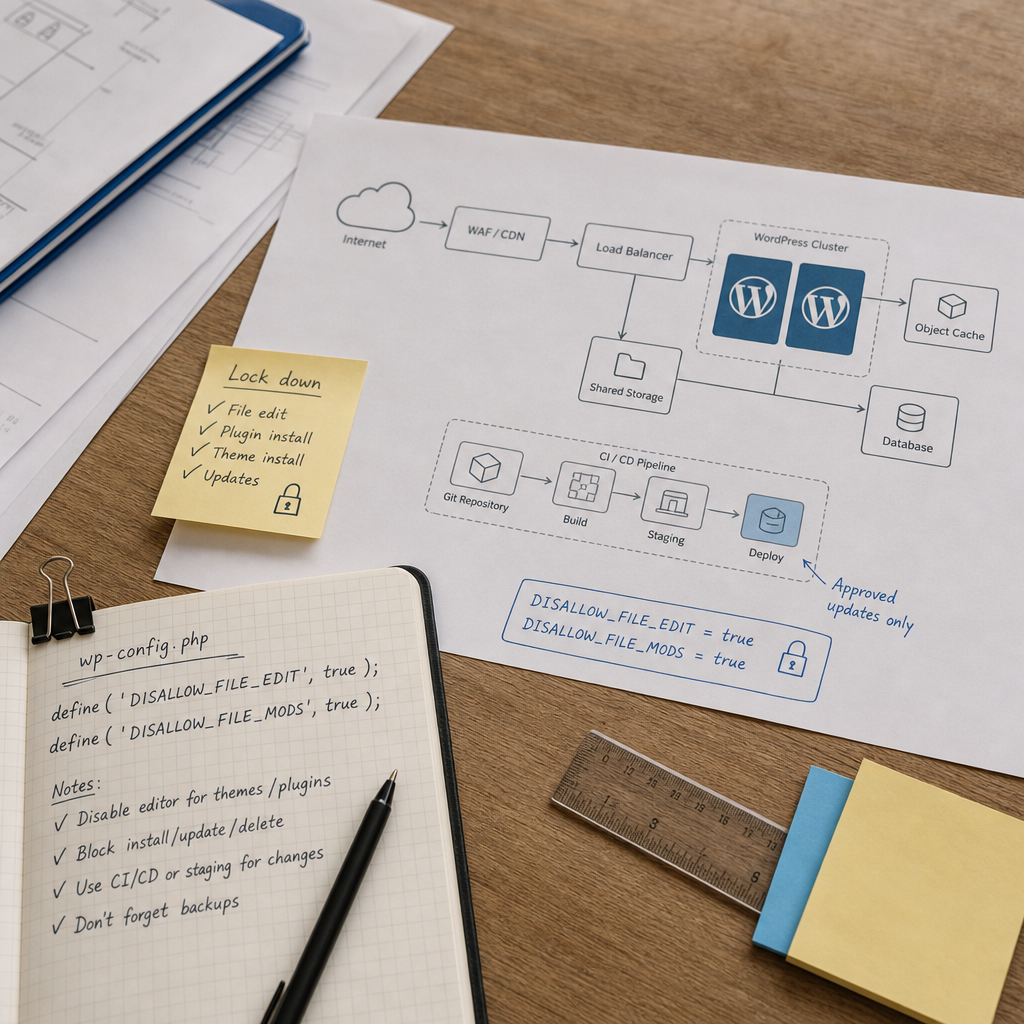
Access to a WordPress administrator account can give an attacker an almost direct path to a site's files. Through the admin panel, they may edit the PHP code of the active theme, install a plugin, or replace a component with a modified version. As a result, an attacker could deploy a webshell, redirects, malicious code, or a hidden user account.
These operations can be restricted at the WordPress configuration level. Production sites commonly use the DISALLOW_FILE_EDIT and DISALLOW_FILE_MODS constants in wp-config.php. They do not replace account security or filesystem permissions, but they significantly reduce the potential impact of a compromised admin panel.
What Threat Does Blocking Code Changes Address?
By default, WordPress may provide administrators with tools for editing theme and plugin files directly from the dashboard. If an administrator's password is stolen, an attacker may not need SSH or hosting access: they can simply use the capabilities already available in WordPress.
The most dangerous scenarios include adding PHP code to the active theme, installing an unknown plugin, and replacing a legitimate component with a malicious version. This code may execute commands, steal data, create new users, or restore access after the primary malicious file has been removed.
The DISALLOW_FILE_EDIT constant disables the built-in theme and plugin file editor. DISALLOW_FILE_MODS has a broader effect: it blocks installing, updating, and deleting components through the standard admin panel mechanisms. In practice, this reduces the number of actions that can be performed after an administrative account has been compromised.
- Editing PHP files through the admin panel becomes unavailable.
- Installing third-party themes and plugins from the dashboard is blocked.
- Updating and deleting components through the standard interface may also be unavailable.
- Administrators retain access to content and settings unless those capabilities are restricted separately.
How to Add the Constants to wp-config.php
Open wp-config.php in the root directory of WordPress and add the constants before the line containing the comment about stopping configuration editing. They must be placed before this line so that they are declared while WordPress is loading.
Example configuration:
define('DISALLOW_FILE_EDIT', true);
define('DISALLOW_FILE_MODS', true);
Should You Use One Constant or Both?
If you only need to remove the code editor, DISALLOW_FILE_EDIT is sufficient. For a production environment where installation and updates are performed in a controlled manner, using both constants is advisable.
DISALLOW_FILE_MODS is the stricter restriction. Before enabling it, make sure your team has another way to update WordPress, themes, and plugins. Otherwise, the site may be left without its usual maintenance mechanism.
- Back up wp-config.php before editing it.
- Make sure the file has valid PHP syntax.
- Apply the changes in a staging environment first.
- Check that the site and admin panel load correctly after the change.
How to Manage Updates After Blocking Changes
After enabling DISALLOW_FILE_MODS, updates should not be performed casually through the admin panel. A safer approach is to obtain changes from a controlled source, verify them, and deploy them through a defined deployment process.
For smaller sites, this may involve a staging environment where you first create a backup, install the updates, test key pages, forms, payments, and integrations, and then move the changes to production. For team projects, CI/CD, a code repository, or another managed deployment process is generally more convenient.
Core, theme, and plugin updates should be scheduled regularly. Blocking changes through the admin panel does not mean components can be left outdated: missing updates often create a separate vulnerability.
- Maintain a list of installed themes and plugins, including their versions.
- Test updates on a copy of the site before deployment.
- Record changes in a log or version control system.
- Have a tested rollback procedure for failed updates.
- Do not install plugins manually on production without checking their source and compatibility.
What to Check After Enabling the Restrictions
Verification should confirm not only that the lines exist in wp-config.php, but also that the admin panel behaves as expected. In a test environment, sign in as a user with the relevant permissions and confirm that the file editor is unavailable and component operations cannot be started through the dashboard.
Also check the site as a regular visitor: the home page, post templates, forms, cart, login, and integrations. An error in wp-config.php can make the entire site unavailable, so a backup and filesystem access should be prepared in advance.
Do not use the presence or absence of a particular menu item as the only proof of protection. Its appearance may depend on the user's role, a multisite network, and additional plugins. It is more reliable to test the actual operation in a staging environment and review the logs.
- The site opens without errors after the configuration change.
- The theme and plugin editors do not allow files to be modified.
- Installing or updating components through the admin panel is blocked.
- The controlled update process still works.
- The backup and recovery procedure have been tested.
Common Configuration Mistakes
The most common mistake is enabling both constants without preparing an update process. In this situation, the administrator loses the usual maintenance tools, while plugins and the WordPress core may remain without important security fixes.
Another mistake is treating these settings as complete WordPress protection. They do not prevent password theft, abuse of an already vulnerable function, content changes, or server access through another channel. They also do not remove malicious code that has already entered the files.
Do not edit wp-config.php through an untrusted plugin or the built-in editor. Use secure server access, a hosting panel with backups, or a verified deployment process.
- Do not confuse disabling the editor with restricting filesystem permissions.
- Do not leave MFA and unique passwords out of your security plan.
- Do not give everyone administrator privileges when they only need to edit content.
- Do not disable updates without assigning an owner to the maintenance process.
- Do not consider the site secure simply because the file editor is hidden.
What Additional Security Measures Are Needed?
Admin panel protection should be multilayered. Enable multi-factor authentication for administrators, use long and unique passwords, and remove unnecessary accounts. For daily work, it is better to use a separate editor account and reserve the administrator account for technical tasks.
At the server level, restrict write permissions and follow the principle of least privilege. Backups should be stored separately from the site and regularly tested through restoration. A WAF, file change monitoring, and login logs can help detect suspicious activity more quickly.
If there are signs of compromise, isolate the site first and preserve logs and backups for analysis. Simply enabling DISALLOW_FILE_EDIT or DISALLOW_FILE_MODS does not clean a system of an existing webshell.
- MFA for all users with elevated privileges.
- Separate roles for administration and content management.
- Restricted write permissions for files and directories.
- Regular backups with restoration testing.
- File change monitoring, login logs, and protection at the WAF level.
Frequently asked questions
Is DISALLOW_FILE_EDIT enough to protect WordPress?
No. This constant disables the theme and plugin editor, but it does not block all installation or update operations. For stricter restrictions, use DISALLOW_FILE_MODS as well, and protect the site with MFA, filesystem permissions, backups, and monitoring.
Can WordPress still be updated after enabling DISALLOW_FILE_MODS?
Yes, but you must arrange a controlled update method outside the standard admin panel operations, such as staging, a deployment process, or another verified tool. Test this process before changing the configuration.
Do these constants block an attacker's access to the server?
No. They restrict specific WordPress capabilities, but they do not replace SSH security, filesystem permissions, hosting isolation, a WAF, or account protection.
What should I do if the site has already been compromised?
Do not limit your response to adding the constants. Isolate the site, change credentials, preserve logs, inspect the files and database, remove or restore compromised components, and confirm that no hidden accounts or backdoors remain in the system.
Conclusion
Adding DISALLOW_FILE_EDIT and DISALLOW_FILE_MODS to wp-config.php is a simple way to reduce the risk of malicious changes through the WordPress admin panel. This restriction is especially useful for production sites where updates are performed through a controlled process.
At the same time, security depends on the entire system: MFA, least-privilege access, up-to-date components, backups, server protection, and monitoring. Prepare the update process and test it on staging before enabling the restrictions in production.